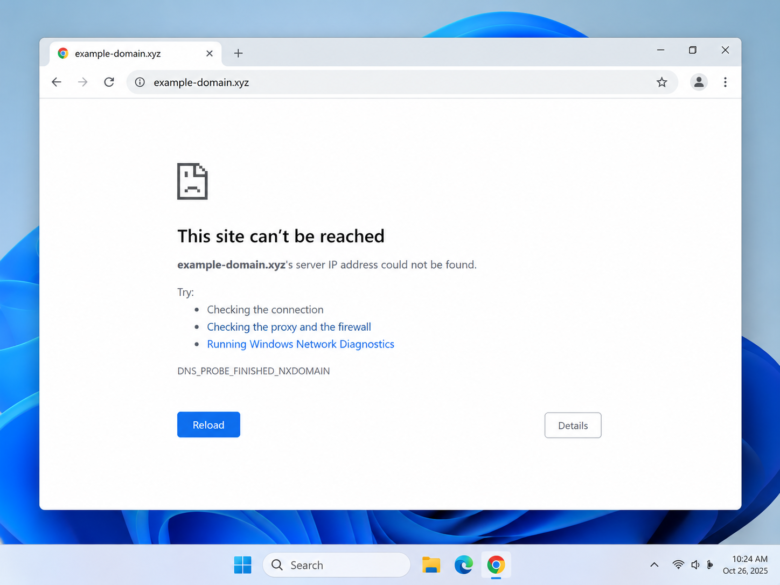
Encountering a sudden error screen while browsing the internet can instantly halt your workflow, and few errors are as common or frustrating as the DNS_PROBE_FINISHED_NXDOMAIN message. Whether you are trying to access a vital work portal, stream a video, or simply read an article, this error completely blocks your access to the target website. While the error code might look highly technical and intimidating, it is essentially a communication breakdown between your computer and the internet’s directory system.
Fortunately, this is a local issue in the vast majority of cases, meaning you have the power to fix it directly from your PC without needing to call an IT professional or your Internet Service Provider (ISP). By understanding what causes this domain resolution failure and systematically applying the correct troubleshooting steps, you can restore your internet connection in a matter of minutes.
Understanding the DNS_PROBE_FINISHED_NXDOMAIN Error
To fix the error, it helps to understand what the acronyms mean. DNS stands for Domain Name System. You can think of the DNS as the phonebook of the internet. When you type a human-readable web address like google.com or youtube.com into your browser, your computer does not inherently know how to connect to it. It relies on a DNS server to translate that domain name into a machine-readable IP address (such as 192.0.2.1).
The NXDOMAIN part of the error stands for “Non-Existent Domain.” When you combine these elements, the error message literally translates to: The Domain Name System attempted to probe (search for) the website you requested, but the process finished because the domain name could not be found or does not exist.
This happens for several reasons:
- Typographical Errors: You may have simply misspelled the URL in the address bar.
- Stale DNS Cache: Your PC stores outdated IP addresses for websites to load them faster, but if a website changes its server, your local cache will point to a dead end.
- Unresponsive DNS Servers: The default DNS servers assigned by your internet service provider might be experiencing an outage or heavy load.
- Security Software Interference: Aggressive antivirus programs or virtual private networks (VPNs) can block the DNS request, falsely flagging a safe website as a threat.
Step-by-Step Methods to Fix the Error on Windows PC
If you have double-checked that you typed the web address correctly and the error persists, proceed through the following technical solutions. Start with the first method, as it resolves the issue for most users.
Method 1: Flush the DNS Cache and Renew Your IP Address
Your Windows operating system keeps a local record of DNS lookups to speed up your web browsing experience. However, if this cache becomes corrupted or outdated, it will consistently lead to the NXDOMAIN error. Flushing the cache clears out the old data and forces your computer to fetch fresh IP addresses.
- Press the Windows Key, type cmd in the search bar.
- Right-click on Command Prompt and select Run as administrator. If prompted by User Account Control, click Yes.
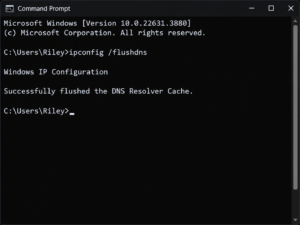
- In the black Command Prompt window, you will need to enter a series of commands. Type the following command and press Enter:
ipconfig /flushdns - You should see a message confirming the DNS Resolver Cache was successfully flushed.
- Next, release your current IP address by typing this command and pressing Enter:
ipconfig /release - Renew your IP address to establish a fresh connection to your router by typing this command and pressing Enter:
ipconfig /renew - Finally, reset your network configuration settings by entering these two commands one after the other, pressing Enter after each:
netsh int ip set dnsnetsh winsock reset - Close the Command Prompt and restart your PC. Try accessing the website again.
Method 2: Change Your Default DNS Servers
By default, your computer uses the DNS servers provided by your Internet Service Provider. These ISP servers are often slow, unreliable, and prone to outages. Switching to a reliable, public DNS server like Google DNS or Cloudflare is one of the most effective ways to bypass the NXDOMAIN error permanently.
- Press the Windows Key + R to open the Run dialog box.
- Type
ncpa.cpland press Enter to open the Network Connections window. - Locate your active internet connection (it will be labeled as Wi-Fi or Ethernet). Right-click on it and select Properties.
- In the list of items, scroll down and find Internet Protocol Version 4 (TCP/IPv4). Click on it once to highlight it, then click the Properties button below.
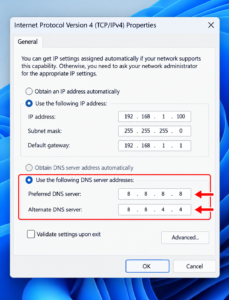
- In the new window, look at the bottom half and select the radio button that says Use the following DNS server addresses.
- To use Google’s highly reliable DNS, enter the following numbers:
-
Preferred DNS server:
8.8.8.8 -
Alternate DNS server:
8.8.4.4
-
- Alternatively, for Cloudflare’s privacy-focused DNS, you can use
1.1.1.1and1.0.0.1. - Click OK to save the changes, close the windows, and refresh your browser.
Method 3: Restart the DNS Client Service
Windows runs a background service dedicated to resolving and caching domain names. If this service gets stuck or encounters a glitch, your browser will not be able to load any websites. Restarting the service forces it to initialize a fresh session.
- Press the Windows Key + R to open the Run dialog box.
- Type
services.mscand press Enter. This opens the Windows Services console. - Scroll down the alphabetical list until you find the service named DNS Client.
- Right-click on DNS Client and select Restart.
- Note: If the Restart option is grayed out (which happens in newer versions of Windows 10 and 11 for security reasons), you can skip this step and rely on the Command Prompt method (Method 1) which achieves a similar reset.
Method 4: Temporarily Disable Your VPN or Antivirus
Virtual Private Networks route your traffic through private servers and often use their own custom DNS resolvers to prevent tracking. Antivirus programs also monitor network traffic to block malicious domains. Sometimes, these security tools become overzealous and block legitimate DNS queries.
- If you are running a VPN client (like NordVPN, ExpressVPN, or a free browser VPN), click disconnect and close the application entirely.
- Locate your antivirus icon in the Windows system tray (bottom right corner). Right-click it and choose to pause or disable protection for 10 minutes.
- Refresh your web browser. If the website loads perfectly, you have identified the culprit. You may need to update your VPN software or add an exception for your browser in your antivirus firewall settings. Always remember to turn your antivirus back on after testing.
Method 5: Reset Google Chrome Flags
If you are only experiencing this error in Google Chrome and other browsers (like Microsoft Edge or Mozilla Firefox) load the website perfectly fine, the issue might be rooted in Chrome’s experimental features.
- Open Google Chrome.
- In the URL address bar at the top, type
chrome://flagsand press Enter. - This page contains experimental features that can sometimes interfere with network connectivity. At the very top right of the page, click the Reset all button.
- Click the Relaunch button that appears at the bottom to restart Chrome with default settings.
Method 6: Check the Local Hosts File
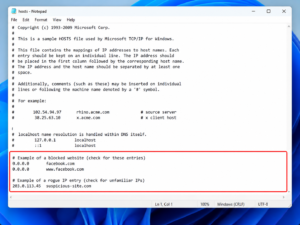
Windows features a local “hosts” file that can manually map IP addresses to specific URLs. IT administrators and sometimes malicious software (malware) use this file to redirect or block access to certain websites. If the website you want to visit is improperly mapped in this file, you will receive an NXDOMAIN error.
- Open the Windows Start Menu, type Notepad, right-click it, and select Run as administrator.
- In Notepad, click File > Open.
- Navigate to the following directory:
C:\Windows\System32\drivers\etc - In the bottom right corner of the open window, change the file type dropdown from “Text Documents (.txt)” to All Files (.*).
- Double-click on the file named hosts.
- Look at the bottom of the text document. If you see the website you are trying to visit listed at the bottom next to an IP address (like
127.0.0.1 facebook.com), delete that entire line. - Click File > Save and close Notepad.
Dealing with DNS anomalies requires a systematic approach, but by working your way from a simple command line flush to adjusting your network adapter’s primary servers, the DNS_PROBE_FINISHED_NXDOMAIN error is highly resolvable. Keeping your browser updated and using a reliable public DNS will drastically reduce the chances of encountering this roadblock during your daily web browsing.
Frequently Asked Questions
Q1: Is DNS_PROBE_FINISHED_NXDOMAIN a virus?
No, this error is not a virus. It is a standard network error indicating that your browser cannot translate the web address into an IP address. However, if malware has secretly modified your local hosts file to block antivirus websites, that specific modification can trigger the error.
Q2: Will changing my DNS to Google (8.8.8.8) make my internet faster?
In many cases, yes. ISP default DNS servers can be congested. Google DNS (8.8.8.8) and Cloudflare (1.1.1.1) have massive global infrastructures, meaning they can resolve domain names milliseconds faster than your local provider, resulting in snappier web page loading times.
Q3: I fixed the error on my PC, but it still happens on my phone. Why?
If multiple devices on your home network are experiencing the exact same NXDOMAIN error, the problem is likely with your Wi-Fi router, not your individual PC. You will need to unplug your router from the power outlet, wait 30 seconds, and plug it back in to clear the router’s internal DNS cache.
Q4: Can a website owner fix the NXDOMAIN error?
Yes, if the error is happening for all visitors, the fault lies with the website owner. If a webmaster forgets to renew their domain name, or misconfigures their DNS A-records at their domain registrar, the domain will fail to propagate across the internet, resulting in an NXDOMAIN error for everyone trying to visit.
Sources and References
- Microsoft Support: Documentation on utilizing the Windows Command Prompt for resetting TCP/IP stacks and flushing the DNS resolver cache.
- Google Public DNS: Technical guidelines and configuration setups for applying 8.8.8.8 IPv4 addresses on Windows operating systems.
- Internet Engineering Task Force (IETF): RFC 1035 Domain Names – Implementation and Specification documentation defining the NXDOMAIN response code.