The open-source software community has completely transformed how creatives work. Years ago, if you wanted to manipulate photos or paint a digital masterpiece, you had to pay a hefty monthly subscription for industry-standard tools. Today, the landscape is entirely different. Two completely free, powerful, and robust programs have risen to the top of the creative world: Krita and GIMP.
But here is where most people get confused: just because they are both free “image editors” does not mean they do the same thing. In fact, they were built for entirely different types of creators.
If you are trying to decide which one to install on your computer, a simple side-by-side feature list won’t give you the whole picture. Instead, let’s explore their core philosophies, how they actually feel in a real-world workflow, and which software deserves your time and creative energy.
The Veteran: Understanding GIMP
GIMP stands for GNU Image Manipulation Program. It has been around since 1996, making it one of the oldest and most respected pieces of open-source software in existence. For decades, it has been widely considered the best free alternative to Adobe Photoshop.
GIMP’s primary focus is exactly what its name suggests: image manipulation. It is designed for photographers, graphic designers, and web developers who need to edit existing images.
Where GIMP Excels
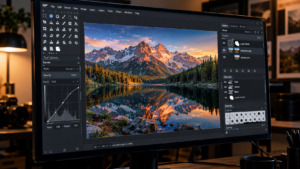
If your daily tasks involve removing backgrounds, color correcting raw photographs, cloning out blemishes, or designing web banners with complex typography, GIMP is your powerhouse. It features a massive library of plugins created by a dedicated community over the last two decades.
GIMP offers powerful selection tools (like the fuzzy select and foreground select), advanced layer masking, and deep color adjustment curves. Because it is so established, if you run into a highly specific photo-editing problem, there is almost certainly a GIMP tutorial or a plugin on a forum to solve it.
The Drawbacks of GIMP
GIMP’s biggest weakness has historically been its user interface. While recent updates have modernized it significantly, it still feels slightly clunky and utilitarian compared to modern commercial software. Additionally, GIMP has struggled with native CMYK color support—a critical requirement if you are designing files that will be physically printed on paper.
The Artist’s Choice: Understanding Krita
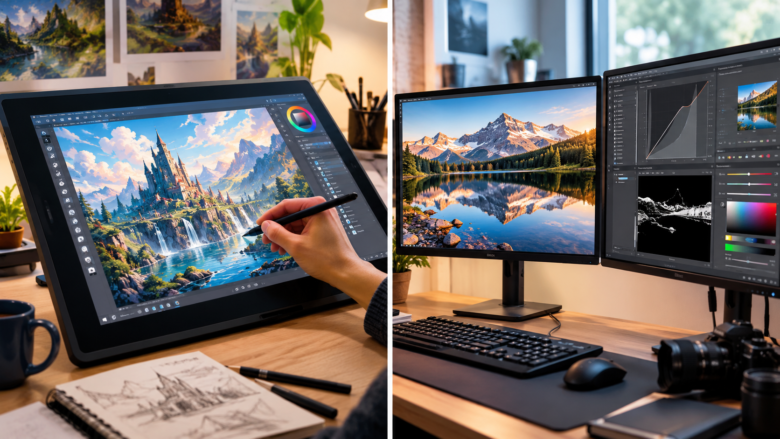
While GIMP was built to edit what already exists, Krita was built to create something out of nothing. Krita is a professional, free, and open-source painting program made by artists, for artists.
If you want to draw webcomics, paint concept art for video games, create 2D animations, or design complex textures, Krita is not just a free alternative—it is arguably one of the best digital painting programs on the market, period.
Where Krita Excels
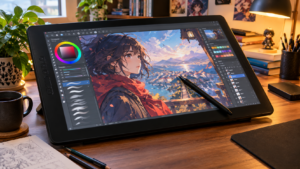
Krita’s brush engine is nothing short of spectacular. It comes pre-loaded with over 100 professional, highly customizable brushes that mimic real-world media like watercolors, oils, chalk, and ink. It features built-in brush stabilizers, meaning if you have a shaky hand while drawing line art for a comic, the software automatically smooths out your strokes.
Unlike GIMP, Krita boasts a beautiful, modern, and highly customizable user interface that feels right at home on a drawing tablet. It also features a dedicated 2D animation timeline, allowing you to create frame-by-frame animations, and a seamless “wrap-around” mode that makes creating repeating patterns for 3D textures incredibly easy. Furthermore, Krita offers native, out-of-the-box CMYK support for print-ready artwork.
The Drawbacks of Krita
Krita is a heavy piece of software. Because its brush engine is so complex, it requires more RAM and a better graphics processor than GIMP. If you are running it on an older, low-end laptop, you might experience lag when using large, complicated brushes. Furthermore, Krita’s text tool and photo-manipulation features are very basic. You can certainly crop a photo or adjust its contrast in Krita, but doing complex photo compositing will feel frustrating compared to GIMP.
Scenario Breakdown: Which Should You Install?
To make this decision as practical as possible, let’s look at a few common creative scenarios.
Scenario A: “I am a photographer on a budget.” You just came back from a photoshoot. You need to adjust the exposure on your raw files, remove a stray trash can from the background of a portrait, and add a subtle vignette. Your Winner: GIMP. Its clone stamp, healing tools, and color correction curves are vastly superior for this type of work.
Scenario B: “I want to draw a webcomic.” You bought a drawing tablet and want to sketch, ink, and color a new manga or comic series. Your Winner: Krita. The brush stabilizers, perspective assistants, and dedicated comic-panel templates will save you hundreds of hours.
Scenario C: “I need to make a flyer for my local business.” You need to combine a photo of your storefront, add a large headline, put a drop shadow on the text, and get it ready to send off to a commercial printer. Your Winner: A Tie, but leaning Krita. GIMP has better text tools, but Krita has native CMYK support for printing. Honestly, for pure layout work, you might want to look at a desktop publisher like Scribus, but between these two, Krita handles print colors better out of the box.
Scenario D: “I want to get into 2D Animation.” You want to animate a bouncing ball or a short cartoon character running across the screen. Your Winner: Krita. It has a fully integrated animation timeline with onion skinning (allowing you to see previous and future frames transparently while you draw). GIMP requires complex plugins to achieve even basic animation.
The Final Verdict
Comparing Krita and GIMP is like comparing a wrench and a screwdriver; both are essential tools, but they do completely different jobs. If your work revolves around pixels that already exist (photography, web design, image compositing, and retouching), GIMP is the undisputed champion of the open-source world. It is lightweight, infinitely expandable via plugins, and has a two-decade track record of reliability.
If your work revolves around creating new pixels from scratch (illustration, digital painting, comics, and 2D animation), Krita is the superior choice. Its breathtaking brush engine, modern interface, and artist-first development approach make it a joy to use with a drawing tablet.
The best part? Because both programs are completely free and open-source, there is nothing stopping you from installing both. Many professional creators use Krita to paint their artwork and then bring the final image into GIMP for final color grading and text layout.
Frequently Asked Questions
Can Krita open Photoshop (.PSD) files?
Yes, Krita has excellent support for opening and saving Photoshop (.PSD) files, keeping your layers, blending modes, and folders intact. GIMP can also open PSD files, though Krita’s compatibility with complex Photoshop layer groups tends to be slightly more accurate.
Do I need a drawing tablet to use Krita?
While you can use Krita with a standard computer mouse, it is highly recommended to use a drawing tablet (like a Wacom, Huion, or XP-Pen). Krita’s brush engine relies heavily on pen pressure sensitivity to control brush size and opacity.
Is GIMP completely safe to download?
Yes. As long as you download GIMP from its official website (gimp.org), it is completely safe, free of malware, and widely trusted by millions of users worldwide.
Can I use Krita and GIMP for commercial work?
Absolutely. Both programs are released under the GNU General Public License. This means you own the copyright to any artwork or design you create using the software, and you can sell your work commercially without paying any royalties or licensing fees to the software developers.
Sources & References
- GIMP Official Documentation and Feature History (gimp.org)
- Krita Foundation Development Notes and Artist Showcases (krita.org)
- Open Source Initiative (OSI) Licensing Guidelines
- Creator community hardware benchmark comparisons for digital painting workflows (2026)