In the rapidly expanding world of digital content creation, remote work, and online tutorials, having a reliable screen recording software is no longer a luxury—it is a necessity. Whether you are a hardcore gamer looking to stream your gameplay on Twitch, a software developer documenting bugs, or a digital marketer creating video tutorials, you need a tool that captures your screen seamlessly.
When it comes to free, open-source screen recording software for Windows, two names dominate the conversation: OBS Studio (Open Broadcaster Software) and ShareX.
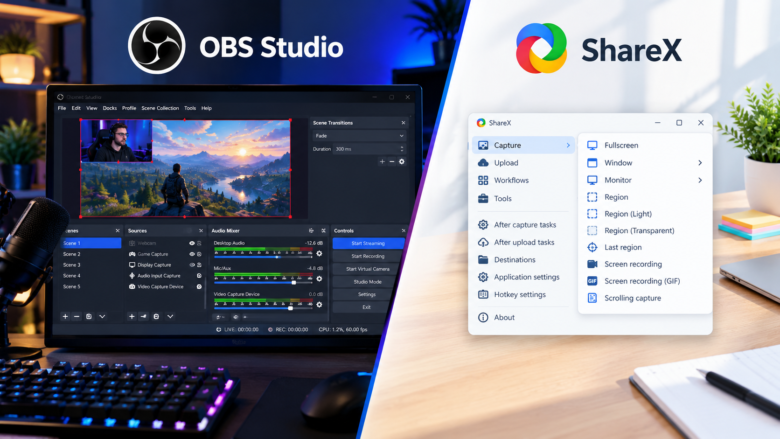
Both of these programs are completely free, open-source, and do not place any annoying watermarks on your final videos. However, they are built with entirely different philosophies and target audiences in mind. OBS Studio is a heavyweight champion designed for professional broadcasting and high-quality video production. ShareX, on the other hand, is a lightweight, highly automated screenshot and basic screen recording utility geared toward maximum productivity.
In this comprehensive 1200+ word guide, we will break down the features, performance, user interfaces, and ideal use cases for OBS Studio and ShareX to help you determine which software deserves a spot on your hard drive.
1. What is OBS Studio?
OBS Studio stands for Open Broadcaster Software. Initially released in 2012, it has grown to become the undisputed industry standard for live streaming and advanced screen recording. Sponsored by tech giants like YouTube, Twitch, and Meta, OBS Studio is a highly powerful, professional-grade tool.
OBS is designed around the concept of “Scenes” and “Sources.” Instead of just recording your screen, OBS allows you to build a broadcast. You can overlay your webcam, add scrolling text, integrate browser sources (like live chat or donation alerts), and mix multiple audio inputs simultaneously.
Key Strengths of OBS Studio:
- Advanced Scene Composition: Mix multiple visual elements on the screen at once.
- Studio-Grade Audio Mixer: Apply VST plugins, noise suppression, and noise gates directly to your microphone.
- High-Performance Encoding: Utilizes hardware encoders like NVENC (NVIDIA) and AMF (AMD) to minimize CPU impact during heavy gaming.
- Cross-Platform: Available for Windows, macOS, and Linux.
2. What is ShareX?
ShareX has been in development since 2007 and is celebrated as the ultimate productivity tool for Windows power users. While it does feature screen recording capabilities via FFmpeg, ShareX is primarily known as an advanced screenshot and file-sharing utility.
ShareX thrives on automation. Its core philosophy is to allow users to capture a specific region of their screen, automatically annotate it, and instantly upload it to over 80 different hosting destinations (like Imgur, Dropbox, Google Drive, or custom FTP servers) with a single keystroke. It is incredibly lightweight, running quietly in the background without draining your system resources.
Key Strengths of ShareX:
- Unmatched Automation: Capture, edit, save, and upload in one seamless workflow.
- Lightweight: Consumes bare minimum RAM and CPU, making it perfect for office laptops.
- Extensive Annotation Tools: Built-in image editor to draw arrows, blur sensitive information, and add text.
- GIF Creation: Easily record small sections of your screen and instantly convert them to optimized GIFs.
3. Detailed Feature Comparison
To truly understand which software fits your needs, we must compare them across several critical categories.
A. User Interface and Ease of Use
- ShareX: ShareX is designed for speed. Most users interact with it via customizable keyboard shortcuts rather than clicking through menus. When you do open the main window, it looks like a straightforward list of your recent captures and a sidebar of settings. It is highly functional, though the sheer number of configuration menus can be slightly overwhelming at first glance.
- OBS Studio: OBS has a steep learning curve. When you first open it, you are greeted with a blank black canvas. You must manually add a “Display Capture” or “Game Capture” source to see anything. However, once you learn the workflow of setting up Scenes and Sources, the interface makes perfect sense for video production.
B. Screen Recording Capabilities & Video Quality
- OBS Studio: This is where OBS shines. It can record in lossless quality, 4K resolution, and at high framerates (60fps, 120fps+). It handles complex rendering tasks efficiently, making it the only choice for recording demanding PC games. You can also separate your audio tracks (e.g., keeping Discord chat on a separate track from game audio) for easier editing later in software like Premiere Pro or DaVinci Resolve.
- ShareX: ShareX uses FFmpeg to record video. While it can record in 1080p and 60fps, it is not optimized for capturing high-end 3D applications or games. If you try to record a heavy video game with ShareX, you will likely experience dropped frames and stuttering. However, for recording a quick browser tutorial or an Excel spreadsheet demonstration, ShareX is perfectly adequate and much faster to launch.
C. Resource Consumption (CPU & RAM)
- ShareX: ShareX is practically invisible. It takes up less than 50MB of RAM while idling in your system tray. Because it does not run a live preview canvas or real-time audio mixers, it is ideal for older laptops or office computers that cannot handle heavy software.
- OBS Studio: OBS requires a decent computer. Because it renders a live preview of your multi-layered broadcast and runs real-time audio filters, it consumes significantly more RAM and CPU. To get the most out of OBS, a dedicated GPU (like an NVIDIA RTX card) is highly recommended.
D. Screenshots and Automation
- ShareX: ShareX destroys OBS in this category. OBS is strictly a video tool; it has virtually no screenshot capabilities. ShareX allows you to take scrolling captures (for long webpages), auto-blur text, copy the image to your clipboard, and generate a shortened URL for sharing—all in about two seconds.
- OBS Studio: Not applicable. If you want to take screenshots, you will need to rely on the Windows Snipping Tool or a third-party app like ShareX alongside OBS.
E. Live Streaming
- OBS Studio: OBS is the king of live streaming. It integrates natively with Twitch, YouTube, Kick, and Facebook Live. You can set up stream keys, manage chat docks, and trigger dynamic transitions.
- ShareX: ShareX cannot live stream. It is strictly a recording and capturing tool.
4. Pros and Cons Summary
OBS Studio
Pros:
- Limitless customization with Scenes and Sources.
- Hardware-accelerated recording (NVENC, AMF, QuickSync).
- Professional multi-track audio mixing.
- Perfect for live streaming and gaming.
Cons:
- Steep learning curve for beginners.
- Requires a relatively powerful PC for smooth operation.
- Overkill for simple, quick recordings.
ShareX
Pros:
- Incredibly lightweight and fast.
- Unbeatable automated upload workflows.
- Excellent built-in image editor for annotations.
- Instant GIF creation.
Cons:
- Video recording is basic and prone to frame drops in heavy applications.
- Windows only (no official macOS or Linux support).
- Cannot live stream.
5. Which Software Should You Choose?
The beauty of these two programs is that they do not actually compete with each other—they complement each other. Many digital professionals have both installed on their computers.
You should choose OBS Studio if:
- You want to start a YouTube channel or Twitch stream.
- You need to record high-framerate PC gameplay.
- You want to record your screen and your webcam simultaneously for a reaction video or presentation.
- You need to record multiple audio tracks separately for post-production editing.
You should choose ShareX if:
- You work in IT, customer support, or software development and need to quickly show bugs or steps to clients.
- You take dozens of screenshots a day and need a fast way to annotate and share them via links.
- You frequently make short tutorials into GIFs.
- You are using a low-end office laptop that struggles to run heavy software.
Conclusion
When comparing OBS Studio vs. ShareX, there is no single “winner” because they serve fundamentally different purposes. OBS Studio is a canvas for video production, offering unmatched power, quality, and streaming capabilities. ShareX is a Swiss Army knife for productivity, offering lightning-fast captures, annotations, and automated sharing.
If you are a serious content creator, OBS Studio is mandatory. If you are an office worker, developer, or casual user looking to share quick snippets of your screen, ShareX will save you hours of time. Our best recommendation? Download both—they are entirely free—and use them for the specific tasks they were built to master.
Frequently Asked Questions
1. Are OBS Studio and ShareX really free?
Yes. Both programs are 100% free and open-source. There are no premium versions, hidden subscription fees, or watermarks placed on your exported files.
2. Can ShareX record my screen with audio?
Yes, ShareX can record your screen along with system audio and your microphone. However, you must install the FFmpeg library (which ShareX prompts you to do inside the app) and select your audio source in the “Task Settings” menu.
3. Does OBS Studio work on Mac?
Yes, OBS Studio is available for Windows, macOS, and Linux. ShareX, however, is currently only available for Windows.
4. Why is my OBS Studio recording lagging or stuttering?
This usually happens if your computer’s hardware cannot handle the recording settings. To fix this, go to OBS Settings > Output, and change your Encoder to a hardware encoder (like NVENC) rather than x264 (which uses your CPU). You may also need to lower your output resolution from 1080p to 720p.
5. Can I use ShareX to stream to Twitch?
No. ShareX does not have RTMP streaming capabilities. If you want to stream to platforms like Twitch or YouTube, you must use OBS Studio.
Sources & References
- OBS Project Official Documentation (obsproject.com)
- ShareX Official GitHub Repository (getsharex.com)
- FFmpeg Open Source Multimedia Framework Guidelines
- Creator community hardware benchmark comparisons (2026)