Whether you are jumping into a crucial Zoom meeting with your boss, recording a voiceover for a YouTube video, or coordinating with your team in a high-stakes multiplayer game, clear audio is essential. Few things are more frustrating than being told, “You sound like you are underwater,” or “Your voice is incredibly muffled.” A muffled microphone on Windows 11 can completely derail your communication, making you sound distant, robotic, or entirely unintelligible.
Fortunately, a muffled microphone is rarely a sign that your hardware is permanently broken. In most cases, the issue stems from a combination of software conflicts, aggressive audio processing features, outdated drivers, or simple physical obstructions. Windows 11 brings a modernized interface for audio management, but it also hides some legacy settings that might be the root cause of your audio woes.
In this comprehensive guide, we will walk you through every step necessary to diagnose and fix a muffled microphone on Windows 11. By the end of this article, you will have restored your microphone to its crisp, clear, and natural-sounding state.
1. Why Does My Microphone Sound Muffled in Windows 11?
Before diving into the technical fixes, it helps to understand what causes the “muffled” or “underwater” sound effect in the first place. Pinpointing the cause can save you time and point you toward the right solution.
- Physical Obstructions: Dust, lint, or food particles can clog the small acoustic mesh of your microphone, physically blocking sound waves.
- Aggressive Noise Cancellation: Windows 11, along with apps like Zoom or Discord, uses software to block out background noise. If these algorithms are too aggressive, they will cut out frequencies in your voice, making it sound muffled.
- Low Sample Rate: If your microphone is set to record at a low “telephone quality” sample rate, your voice will sound highly compressed and unnatural.
- Driver Conflicts: Generic Windows audio drivers sometimes fail to communicate properly with specialized hardware (like a dedicated USB mic or a gaming headset), leading to degraded audio quality.
- Bluetooth Bandwidth Limitations: If you are using a Bluetooth headset, the bandwidth is split between listening and speaking. This often forces the microphone into a low-quality “Hands-Free Profile” mode.
2. Preliminary Physical Checks and Hardware Cleaning
Software fixes cannot overcome hardware problems. Before tweaking settings in Windows 11, you must ensure the physical hardware is in optimal condition.
Position the Microphone Correctly
If you are using a standalone USB microphone (like a Blue Yeti), ensure you are speaking into the correct side. Many condenser microphones are “side-address,” meaning you should speak into the front of the mic, not the top. If you speak into the wrong side, the audio will sound distant and heavily muffled. For headset users, ensure the boom mic is positioned about an inch away from the corner of your mouth, not directly in front of your nose or tucked beneath your chin.
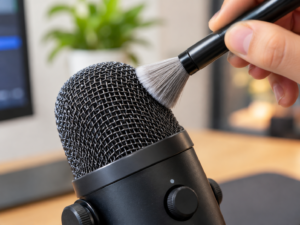
Clean the Microphone Mesh
Microphones naturally accumulate dust, saliva, and debris over time.
- For headsets: Gently wipe the microphone head with a microfiber cloth slightly dampened with isopropyl alcohol.
- For standalone mics: Use a soft-bristled toothbrush to very gently brush away any dust caught in the metal grille. You can also use a light burst of compressed air from a safe distance.
Check the Cables and Ports
A loose connection can cause a drop in electrical signal, leading to poor audio. Unplug your microphone or headset and plug it into a different port. If you are using a USB microphone, plug it directly into the back of your computer’s motherboard rather than a front-panel port or a USB hub, as motherboard ports provide more stable power and data transfer.
3. Disable Windows 11 Audio Enhancements
Windows 11 includes built-in “Audio Enhancements” designed to improve sound quality. However, these enhancements often apply heavy equalization and noise suppression that clashes with your microphone’s natural hardware, resulting in a heavily muffled, robotic sound. Disabling this feature is one of the most effective fixes.
- Press Windows Key + I to open the Settings app.
- Navigate to System > Sound.
- Scroll down to the Input section and click on your active microphone to open its properties.
- Scroll down to the Audio enhancements section.
- Click the dropdown menu and change it from “Device Default Effects” or “On” to Off.
- Test your microphone using the “Test your microphone” button just above this setting to see if clarity has improved.
4. Adjust Microphone Volume and Boost Settings
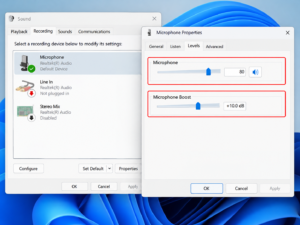
Sometimes, a microphone sounds muffled simply because the input volume is too low, and the system is struggling to pick up your voice. Alternatively, if “Microphone Boost” is set too high, it introduces severe distortion that sounds like muffling.
- Press Windows Key + R to open the Run dialog box.
- Type
mmsys.cpland hit Enter. This opens the legacy Sound Control Panel. - Click on the Recording tab.
- Right-click your active microphone (the one with the green checkmark) and select Properties.
- Navigate to the Levels tab.
- Ensure the Microphone slider is set between 80 and 100.
- If you see a Microphone Boost slider, lower it. A boost of +10.0 dB or +20.0 dB can severely distort your audio. Try setting it to 0.0 dB or a maximum of +10.0 dB and click Apply.
5. Change the Default Format (Sample Rate)
The sample rate determines the resolution of your audio. If your microphone is accidentally set to a low sample rate (like 8000 Hz or 16000 Hz), it will sound like you are talking over a 1990s landline telephone. Upgrading to “Studio Quality” will instantly remove that muffled compression.
- Stay in the legacy Sound Control Panel (type
mmsys.cplin the Run dialog). - Go to the Recording tab, right-click your microphone, and select Properties.
- Navigate to the Advanced tab.
- Under the Default Format section, click the dropdown menu.
- Select the highest available quality, typically 2 channel, 16-bit, 48000 Hz (DVD Quality) or 24-bit, 48000 Hz (Studio Quality).
- Uncheck the box that says “Enable audio enhancements” if it is present on this tab.
- Click Apply and then OK.
6. Check App-Specific Noise Suppression
If your microphone sounds crystal clear in the Windows Voice Recorder but sounds horribly muffled in Zoom, Microsoft Teams, or Discord, the problem is not Windows 11—it is the application itself.
Modern communication apps feature aggressive AI background noise removal. When these algorithms try to remove background fan noise or keyboard clicks, they often accidentally chop off the high frequencies of your voice, making you sound muffled.
- In Discord: Go to User Settings (the gear icon) > Voice & Video. Scroll down and turn off Krisp Noise Suppression. Also, disable “Echo Cancellation” and “Noise Reduction.”
- In Zoom: Go to Settings > Audio. Under “Suppress background noise,” change the setting from “Auto” or “High” to Low (faint background noises). Check the box for “Original Sound for Musicians” for the purest audio pass-through.
- In Microsoft Teams: Go to Settings > Devices. Under “Noise suppression,” change it from “Auto” to Off or Low.
7. Update or Reinstall Audio Drivers
If you are using the generic audio drivers provided by Windows, they might not be fully compatible with your motherboard’s audio chipset (often Realtek) or your specific USB microphone. Updating to the manufacturer’s dedicated driver can fix severe audio processing errors.
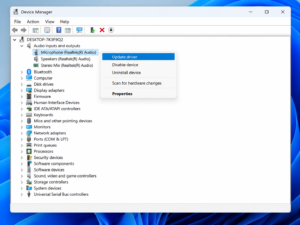
- Right-click the Start Button and select Device Manager.
- Expand the section labeled Audio inputs and outputs.
- Right-click your muffled microphone and select Update driver.
- Choose Search automatically for drivers.
- If Windows says you have the best drivers but the mic is still muffled, right-click the microphone again and choose Uninstall device.
- Restart your PC. Upon rebooting, Windows 11 will automatically download and install a fresh, uncorrupted version of the driver.
Conclusion
A muffled microphone on Windows 11 is a fixable nuisance that usually requires just a few minutes of software configuration. By systematically working through these steps—starting with physical hardware checks, disabling aggressive Windows and app-specific audio enhancements, correcting your sample rate, and ensuring your drivers are up to date—you can eliminate that underwater sound completely.
Remember that audio processing is often layered. If your headset software, Windows 11, and Discord are all trying to apply noise cancellation at the same time, your voice will inevitably be destroyed in the process. Disabling these overlapping enhancements ensures that your voice reaches your audience exactly as it was spoken: crisp, clear, and professional.
Frequently Asked Questions
Q1: Why does my Bluetooth headphone microphone always sound muffled on Windows 11?
Bluetooth has limited bandwidth. When you use a Bluetooth headset for both listening and speaking simultaneously on a PC, Windows forces the device into the “Hands-Free Audio” profile. This drastically lowers both the speaker and microphone audio quality to fit within the Bluetooth bandwidth limits. For high-quality voice, a wired or dedicated 2.4GHz wireless headset is required.
Q2: Can a slow internet connection make my microphone sound muffled?
Yes, but only to the people listening to you. If you have high packet loss or a slow upload speed, apps like Zoom and Discord will heavily compress your audio to keep the connection alive, resulting in a muffled, robotic sound. Test your mic locally using the Windows Voice Recorder to see if it is a hardware issue or a network issue.
Q3: I disabled Audio Enhancements, but my mic is still muffled. What else can I do?
If you have proprietary software installed for your hardware (e.g., Logitech G HUB, Razer Synapse, Corsair iCUE), open that specific application. These programs often override Windows settings and have their own noise gate, EQ, and noise suppression sliders that may be muffling your voice.
Q4: Will buying a USB microphone fix my muffled audio?
If you are currently using the built-in microphone on a laptop, upgrading to a dedicated USB microphone will provide a massive leap in audio clarity. Laptop microphones are notoriously small, poorly placed, and highly susceptible to picking up internal laptop fan noise.
Sources and References
- Microsoft Support: Official documentation on managing audio inputs, running the audio troubleshooter, and configuring sound settings in Windows 11.
- Discord Help Center: Guidelines for configuring Krisp noise suppression and advanced voice settings.
- Zoom Support: Documentation on enabling Original Sound and managing background noise suppression profiles.
- Realtek Audio Guidelines: Manufacturer specifications for configuring default formats, sample rates, and managing driver updates for integrated motherboard audio.