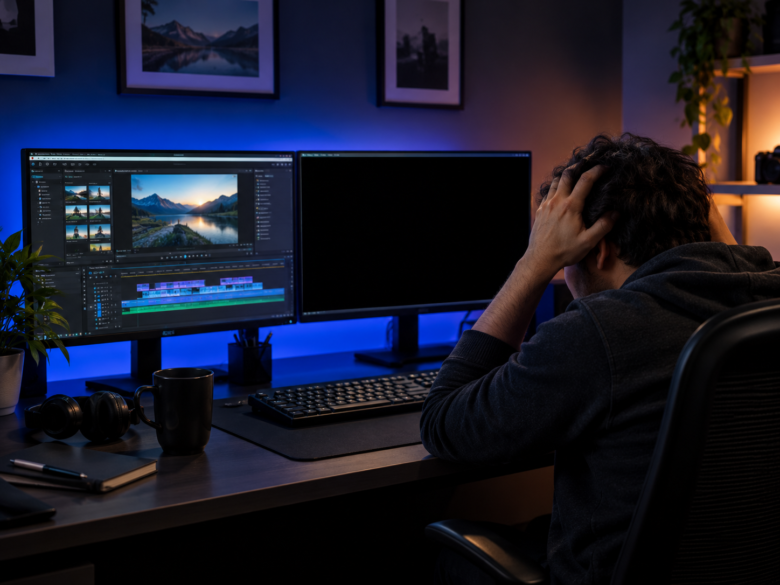
If you are a video editor, content creator, or filmmaker, you know that rendering is the final, crucial step in your workflow. After hours of cutting, color grading, and adding effects, you finally hit the “Export” or “Render” button. But instead of a finished video file, your computer screen suddenly goes completely black, your system freezes, or your PC crashes entirely. Dealing with black screen crashes when rendering video is incredibly frustrating, especially when you are working on a tight deadline.
This issue is prevalent across almost all major video editing software, including Adobe Premiere Pro, DaVinci Resolve, After Effects, and Sony Vegas. The sudden black screen is usually a defense mechanism triggered by your computer’s hardware or operating system when it encounters a critical failure under heavy load.
In this comprehensive guide, we will explore the root causes of black screen crashes during video export and provide you with actionable, step-by-step solutions to fix the problem permanently.
Why Does My Screen Go Black While Rendering Video?
Video rendering is one of the most resource-intensive tasks you can ask your computer to perform. It pushes your Central Processing Unit (CPU), Graphics Processing Unit (GPU), and Random Access Memory (RAM) to their absolute limits. Understanding why the crash happens is the first step to fixing it. The most common culprits include:
- Thermal Throttling (Overheating): When hardware gets too hot, it automatically shuts down to prevent permanent melting or electrical damage. This results in an immediate black screen.
- GPU Driver Conflicts: Outdated, corrupted, or incorrectly installed graphics drivers can fail when the editing software demands heavy hardware acceleration.
- Power Supply (PSU) Spikes: Rendering causes massive power draw. If your Power Supply Unit cannot handle the sudden spike in wattage required by your GPU and CPU, the system will turn off the display or restart.
- Insufficient VRAM or Memory Leaks: 4K video editing requires a massive amount of Video RAM. If your GPU runs out of memory, the display driver may crash.
- Corrupted Project Cache: Temporary cache files can become corrupted over time, causing the software to crash the moment it tries to read them during export.
Step-by-Step Solutions to Fix Black Screen Crashes
Before proceeding, ensure you have saved your project files and backed up your media. Work through these solutions systematically, starting from the most common software fixes to hardware checks.
1. Update to “Studio” Graphics Drivers
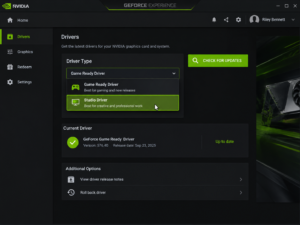
Most video editors use NVIDIA or AMD graphics cards. By default, these cards use “Game Ready” drivers, which are optimized for the latest video games, not creative applications. Switching to professional-grade drivers offers significantly more stability during rendering.
For NVIDIA Users:
- Open the NVIDIA GeForce Experience app.
- Click on the Drivers tab at the top left.
- Click the three vertical dots (More options) next to the “Check for updates” button.
- Select Studio Driver instead of Game Ready Driver.
- Download and perform a Custom Installation, checking the box for “Perform a clean installation.”
For AMD Users:
- Download the AMD Software: PRO Edition (formerly Radeon Pro) instead of the standard Adrenalin edition from the official AMD website.
- These drivers undergo rigorous testing with software like Premiere Pro and DaVinci Resolve for maximum stability.
2. Monitor and Manage System Temperatures
If your PC screen goes black and the computer fans suddenly spin at maximum speed, you are likely facing an overheating issue.
- Download Monitoring Software: Use free tools like HWMonitor, Core Temp, or MSI Afterburner to track your CPU and GPU temperatures while rendering.
- Safe Temperature Ranges: Ideally, your CPU and GPU should stay below 85°C (185°F) under full load. If they exceed 90°C, your system is in the danger zone.
- Physical Cleaning: Turn off your PC and use compressed air to clean out dust from the GPU fans, CPU cooler, and case intake fans.
- Repasting: If you are using an older laptop or desktop, the thermal paste on your CPU or GPU may have dried out. Reapplying high-quality thermal paste can dramatically drop temperatures.
3. Change the Video Rendering Engine (Disable Hardware Acceleration)
Sometimes, the communication between your editing software and your graphics card completely breaks down. Temporarily disabling GPU hardware acceleration forces your system to rely solely on the CPU. While this will make the rendering process slower, it often bypasses black screen crashes entirely.
In Adobe Premiere Pro:
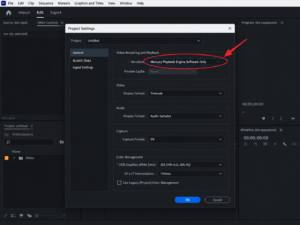
- Go to File > Project Settings > General.
- Look under the Video Rendering and Playback section.
- Change the Renderer from Mercury Playback Engine GPU Acceleration (CUDA/OpenCL/Metal) to Mercury Playback Engine Software Only.
- Click OK and try exporting again.
In DaVinci Resolve:
- Go to DaVinci Resolve > Preferences > Memory and GPU.
- Uncheck “GPU Processing Mode” (Auto) and manually select a different framework or limit the GPU usage, though Resolve relies heavily on the GPU, so ensuring drivers are updated is more critical here.
4. Clear the Media Cache Files
Video editors generate massive amounts of temporary cache files to playback footage smoothly. If these files get corrupted, the render engine will crash when trying to access them.
- In Premiere Pro: Go to Edit > Preferences > Media Cache. Click on the Delete button next to Remove Media Cache Files. Select “Delete all media cache files from the system.”
- In After Effects: Go to Edit > Purge > All Memory & Disk Cache.
- Restart your PC after clearing the cache before attempting to render again.
5. Check Your Power Supply Unit (PSU)
If your screen goes black and the entire PC reboots automatically, your Power Supply Unit is likely the culprit. Rendering causes sudden, massive spikes in power draw (Transient Power Spikes).
- Calculate Wattage: If you have an incredibly powerful GPU (like an RTX 4080 or 4090) but a PSU rated for only 650 Watts, your system will trip its over-current protection and shut down. Upgrading to an 850W or 1000W Gold-rated PSU often permanently fixes black screen crashes during rendering.
- Check Power Cables: Ensure you are using separate PCIe power cables from your PSU to your graphics card. Do not use “daisy-chained” (split) cables for high-end GPUs, as a single cable may not deliver sufficient stable power.
6. Adjust Windows TDR (Timeout Detection and Recovery) Settings
Windows has a built-in feature called Timeout Detection and Recovery (TDR). If Windows detects that the GPU hasn’t responded within 2 seconds, it resets the display driver, causing a black screen. Rendering heavy effects often takes longer than 2 seconds per frame, triggering a false crash.
You can modify the Windows Registry to increase this delay time (Proceed with caution when editing the registry):
- Press Windows Key + R, type
regedit, and hit Enter. - Navigate to:
HKEY_LOCAL_MACHINE\System\CurrentControlSet\Control\GraphicsDrivers - Right-click on an empty space, select New, and choose DWORD (32-bit) (or QWORD for 64-bit Windows).
- Name the new value
TdrDelay. - Double-click
TdrDelayand change the “Value data” to8or10(which gives the GPU 8-10 seconds to respond instead of 2). - Restart your computer.
Optimize Your Export Settings
Sometimes, pushing the encoder too hard causes the crash. Try optimizing your output settings to reduce the strain on your system:
- Avoid VBR, 2 Pass: Variable Bitrate (2 Pass) requires the computer to analyze the video twice, doubling the strain. Switch to VBR, 1 Pass or CBR (Constant Bitrate).
- Export in Segments: If you have a 2-hour long documentary, try rendering it in 20-minute chunks. Bring those exported chunks into a new project and stitch them together. This prevents prolonged heat buildup.
- Transcode Source Media: Editing H.264 or H.265 (HEVC) footage natively is incredibly taxing on hardware. Transcode your footage to edit-friendly formats like ProRes or DNxHD before you start editing to ensure a smooth, crash-free export.
Conclusion
Experiencing a black screen crash when rendering video is a nerve-wracking experience, but it is rarely a sign of permanent hardware death. By systematically isolating the issue—starting with updating to Studio drivers, managing system temperatures, clearing media caches, and adjusting software rendering settings—you can get your workstation back to full stability.
Always keep your software updated and ensure your hardware (especially the cooling and power supply) is adequate for the intense demands of modern video editing.
Frequently Asked Questions
Q1: Will switching to “Software Only” rendering reduce the quality of my video?
No, switching to Software Only (CPU rendering) does not reduce the visual quality of your exported video. However, it will take significantly longer to render the file compared to using GPU hardware acceleration.
Q2: Why does my screen go black, but I can still hear the audio playing?
This is a classic symptom of a display driver crash. The GPU has momentarily failed or reset, causing the display output to cut off, but the CPU and operating system are still actively running background processes, which is why the audio continues.
Q3: Can lack of RAM cause black screen crashes during rendering?
Yes. If your editing software maxes out your physical RAM, the system will rely on virtual memory (your hard drive). If the drive cannot keep up with the data transfer speeds required, the system can freeze or crash to a black screen. 32GB of RAM is generally recommended for 4K editing.
Q4: Should I over-volt or under-volt my GPU for editing?
Many editors successfully use MSI Afterburner to undervolt their GPUs. Undervolting reduces the amount of power the GPU consumes, which lowers temperatures and prevents thermal throttling, often resulting in much more stable render sessions without sacrificing performance.
Sources and References
- Adobe Help Center: Official guidelines on troubleshooting Premiere Pro export issues and managing the Mercury Playback Engine.
- NVIDIA Support: Documentation regarding the differences between Game Ready and Studio Drivers for creative applications.
- Blackmagic Design Forums: Community-tested solutions for DaVinci Resolve GPU configuration and power management.
- Microsoft Support: Official documentation on modifying TDR (Timeout Detection and Recovery) Registry keys for Windows environments.