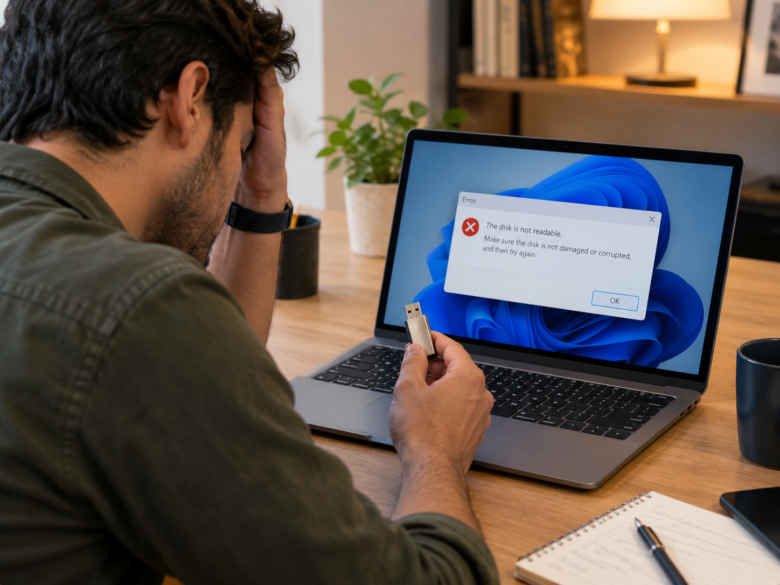
Have you ever been in the middle of transferring important files, only to hear that dreaded Windows disconnect chime, followed by an error message stating your USB drive is no longer recognized? USB drives disconnecting and reconnecting randomly is one of the most frustrating issues a computer user can face. Not only does it interrupt your workflow, but it also puts your valuable data at risk of corruption.
Whether you are using a flash drive, an external hard drive, or a solid-state drive (SSD), this frequent disconnection issue usually boils down to a few common culprits: faulty hardware, aggressive power management settings, or outdated system drivers.
In this comprehensive guide, we will walk you through the most effective, step-by-step solutions to stop your USB drives from disconnecting randomly. By the end of this article, you will have a stable, uninterrupted connection to your external storage devices.
1. Why Do USB Drives Keep Disconnecting?
Before diving into the fixes, it is essential to understand why this problem occurs. Pinpointing the root cause can save you time and prevent future data loss. The most common reasons include:
- Physical Hardware Damage: The USB port on your computer or the connector on the drive itself might be bent, damaged, or clogged with dust.
- Insufficient Power Supply: External hard drives draw power directly from the USB port. If the port cannot supply enough power, the drive will disconnect.
- Aggressive Power Management: Windows has built-in features that automatically turn off USB ports to save battery life, which can inadvertently disable your active drive.
- Corrupted or Outdated Drivers: The software that allows your operating system to communicate with the USB hardware might be buggy or out of date.
- File System Errors: The internal file structure of the USB drive may contain bad sectors or corruption.
2. Preliminary Hardware Checks
Before altering system settings, rule out physical hardware issues. Sometimes, the simplest fix is the correct one.
Try a Different USB Port
USB ports can wear out over time due to repeated use. If your drive is plugged into the front panel of a desktop computer, move it to a port on the back panel. The back ports are connected directly to the motherboard and generally provide a more stable power supply and data connection.
Clean the USB Ports and Connectors
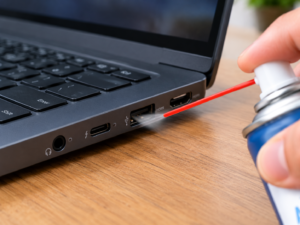
Dust, lint, and debris can accumulate inside the USB ports, preventing a solid electrical connection. Use a can of compressed air to gently blow out any debris from both the computer’s USB port and the USB drive’s connector. Never use metal objects like pins to clean the port, as this can cause a short circuit.
Test the Drive on Another Computer
To determine if the problem lies with your PC or the drive itself, plug the USB drive into a completely different computer. If it disconnects randomly on the second machine as well, your USB drive is likely failing and needs to be replaced. If it works perfectly, the issue is within your computer’s software or ports.
3. Disable USB Selective Suspend Setting
The “USB Selective Suspend” feature in Windows allows the operating system to put individual USB ports into a low-power state to conserve energy. While excellent for extending laptop battery life, it is notorious for causing external drives to disconnect randomly. Disabling this feature is the most successful fix for this issue.
Here is how to disable it:
- Press the Windows Key + S to open the search bar.
- Type Control Panel and hit Enter.
- Navigate to Hardware and Sound > Power Options.
- Next to your currently selected power plan, click on Change plan settings.
- Click on Change advanced power settings.
- A new window will pop up. Scroll down and expand the USB settings category by clicking the plus (+) icon.
- Expand the USB selective suspend setting.
- You will see options for On battery and Plugged in. Change both of these settings from Enabled to Disabled.
- Click Apply, then click OK.
- Restart your computer for the changes to take full effect.
4. Adjust USB Root Hub Power Management
Similar to the Selective Suspend feature, the Windows Device Manager has individual power settings for your USB controllers. You need to ensure your computer is not allowed to turn off your USB Root Hubs.
- Right-click on the Start Button (Windows logo) and select Device Manager.
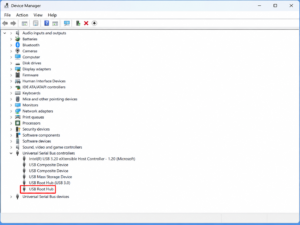
- Scroll down to the bottom of the list and expand Universal Serial Bus controllers.
- Look for an entry named USB Root Hub (you may have multiple entries with this name; you will need to repeat these steps for each one).
- Right-click on USB Root Hub and select Properties.
- Navigate to the Power Management tab at the top.
- Uncheck the box that says “Allow the computer to turn off this device to save power.”
- Click OK.
- Repeat steps 4 through 7 for any other “USB Root Hub” or “Generic USB Hub” listed in this section.
5. Update or Reinstall USB Drivers
Corrupted or outdated USB drivers prevent your operating system from communicating properly with your storage devices. Updating or reinstalling these drivers forces Windows to establish a fresh connection.
How to Update USB Drivers:
- Open Device Manager (Right-click Start > Device Manager).
- Expand Universal Serial Bus controllers.
- Right-click on your USB Root Hub or the specific name of your external drive if listed.
- Select Update driver.
- Choose Search automatically for drivers. Windows will look for the latest software and install it.
How to Reinstall USB Drivers:
If updating does not work, reinstalling the drivers is the next best step.
- In Device Manager, right-click on your USB device or USB Root Hub.
- Select Uninstall device. (Do not worry, this will not delete your files).
- Confirm the uninstallation if prompted.
- Restart your computer. Upon booting up, Windows will automatically detect the missing USB hardware and reinstall a fresh, uncorrupted driver.
6. Run the CHKDSK Utility to Fix File System Errors
If the USB drive itself has file system corruption or bad sectors, Windows may disconnect it to protect the operating system. You can use the built-in Check Disk (CHKDSK) utility to scan and repair the drive.
- Connect your USB drive to the computer.
- Press the Windows Key + S, type cmd, right-click on Command Prompt, and select Run as administrator.
- Take note of the drive letter assigned to your USB drive (e.g., E:, F:, G:). You can find this in “This PC”.
- In the Command Prompt window, type the following command, replacing ‘X’ with your actual USB drive letter:
chkdsk X: /f /r /x - Press Enter.
-
/ftells the system to fix any errors it finds. -
/rlocates bad sectors and recovers readable information. -
/xforces the volume to dismount first if necessary.
-
- Wait for the scan to complete. Depending on the size of your drive, this can take anywhere from a few minutes to an hour.
7. Run the Windows Hardware and Devices Troubleshooter
Windows includes a hidden troubleshooting tool specifically designed to find and fix issues with external devices.
- Open the Command Prompt as an administrator.
- Type the following command and press Enter:
msdt.exe -id DeviceDiagnostic - The Hardware and Devices Troubleshooter window will open.
- Click Next and follow the on-screen prompts. Windows will scan for hardware changes and attempt to fix any lingering USB connection issues automatically.
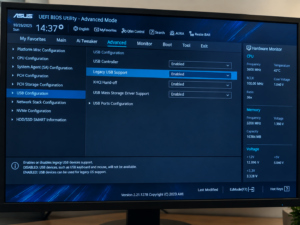
8. Disable USB Legacy Support in BIOS (Advanced)
If you have tried all software fixes within Windows and the drive still disconnects randomly, the issue might be rooted in your motherboard’s BIOS settings. “USB Legacy Support” allows older USB devices to work properly, but it can sometimes conflict with modern high-speed external drives.
Note: Entering BIOS varies by computer manufacturer.
- Restart your computer.
- As it boots up, repeatedly press the BIOS key (usually F2, F10, F12, or DEL) until the BIOS setup screen appears.
- Navigate through the menus (often under “Advanced” or “Peripherals”) using your arrow keys.
- Locate USB Legacy Support (or Legacy USB Support).
- Change the setting to Disabled.
- Save your changes and exit the BIOS (usually by pressing F10).
- Allow your computer to boot normally and test the USB drive.
Conclusion
A USB drive that disconnects randomly can disrupt your day and threaten your data security, but it is rarely an unfixable problem. By starting with simple hardware checks—like trying different ports and cleaning connections—and moving on to software adjustments like disabling USB Selective Suspend and updating drivers, you can resolve the issue in almost all cases.
Always remember to safely eject your USB drives when you are finished using them, as abruptly pulling them out is a leading cause of file system corruption. If you have exhausted every step on this list and the drive still fails, the hardware itself has likely reached the end of its lifespan, and it is time to invest in a new, reliable storage device.
Frequently Asked Questions
Q1: Why does my USB drive disconnect during a large file transfer?
This is typically caused by power management settings. Transferring large files takes time, and if your computer goes idle, Windows might cut power to the USB Root Hub to save energy (USB Selective Suspend). It can also happen if the drive overheats during heavy data loads.
Q2: Can a bad USB cable cause random disconnections?
Yes. If you are using an external hard drive connected via a removable cable, a frayed, bent, or low-quality cable can cause brief power interruptions, leading to the device disconnecting and reconnecting rapidly. Try swapping the cable before replacing the drive.
Q3: Will uninstalling USB drivers delete my personal files?
No. Uninstalling USB drivers in the Device Manager only removes the software that allows Windows to communicate with the drive. Your personal photos, videos, and documents stored on the drive itself will remain completely safe.
Q4: How do I know if my USB drive is permanently dead?
If you plug the USB drive into multiple different computers and none of them recognize the device, or if the drive produces physical clicking/grinding noises (in the case of external mechanical hard drives), the hardware is likely dead and requires professional data recovery services.
Sources and References
- Microsoft Support Documentation: Information regarding Windows power management and Device Manager configurations.
- TechNet Forums: Community solutions regarding the CHKDSK utility parameters and USB Selective Suspend behavior.
- Hardware Manufacturer Guidelines: Standard troubleshooting protocols for external storage devices provided by major brands like Western Digital, Seagate, and SanDisk.