Choosing the right video editing software is one of the most critical decisions for content creators, video editors, and digital marketers. In today’s fast-paced digital ecosystem, two free powerhouses dominate the desktop landscape: DaVinci Resolve and CapCut PC.
While both platforms are available for desktop users without a massive upfront investment, they serve fundamentally different workflows, skill levels, and creative goals.
- CapCut PC is designed for speed, intuitive automated features, trending social templates, and rapid multi-platform publishing.
- DaVinci Resolve is a Hollywood-grade post-production suite offering deep professional control over color grading, multi-track audio mixing, and visual effects.
This in-depth comparison breaks down their features, performance metrics, pricing tiers, and ideal use cases to help you choose the best tool for your publishing schedule.
1. Overview: Understanding the Philosophy of Each Editor
Before diving into granular features, it helps to understand what each software was built to achieve.
CapCut PC: Speed and Accessibility
Originally famous as a mobile-first social media editor, CapCut’s desktop version brings streamlined editing to Windows and Mac. Its core philosophy revolves around reducing friction. It removes complex technical barriers, allowing creators to turn raw footage into a polished video in minutes using pre-made templates, automatic text-to-speech, and built-in trending assets.
DaVinci Resolve: Depth and Control
Developed by Blackmagic Design, DaVinci Resolve is an end-to-end professional non-linear editor (NLE). It brings editing, color grading, visual effects (Fusion), and audio post-production (Fairlight) into a single unified application. Its philosophy centers on uncompromised creative control, giving creators Hollywood-level tools for cinematic projects.
2. Core Feature-by-Feature Comparison
Interface and Learning Curve
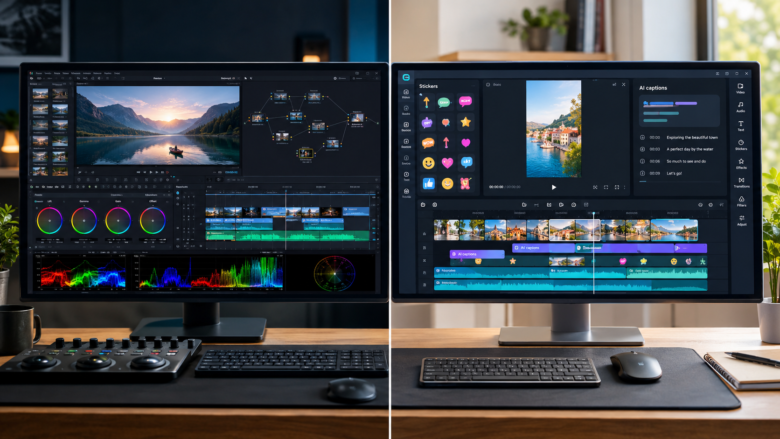
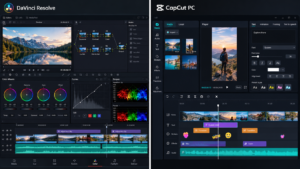
- CapCut PC: Features a clean, minimalist interface heavily inspired by modern timeline scrollers. Beginners can pick it up in an afternoon without watching tutorials. Most effects, filters, and transitions are applied with a single click.
- DaVinci Resolve: Features a modular workflow divided into dedicated pages: Media, Cut, Edit, Fusion, Color, Fairlight, and Deliver. The learning curve is steep. Expect to spend weeks mastering its professional layout, though your skills will easily transfer to other industry-standard editing systems.
Performance and System Requirements
- CapCut PC: Highly optimized for everyday consumer laptops and mid-range hardware. It renders proxies smoothly and handles low-spec hardware efficiently without crashing.
- DaVinci Resolve: A hardware-hungry beast. It relies heavily on a dedicated GPU (Graphics Processing Unit) and ample RAM. Running it on a modest office laptop without a strong graphics card can lead to playback lag and rendering bottlenecks.
Audio Production: Fairlight vs. Creator Audio
- CapCut PC: Offers practical creator-level audio tools, including royalty-free music tracks, basic voice filters, volume curves, and automatic background noise reduction.
- DaVinci Resolve: Ships with Fairlight, a fully integrated Digital Audio Workstation (DAW). It features track-based mixing, advanced dynamics, EQ, dialogue levelers, and studio-grade AI voice isolation that rivals expensive third-party plugins.
Color Grading and Visual Effects
- CapCut PC: Provides a wide library of aesthetic filters, 3D LUTs, and basic color correction wheels. It works wonderfully for quick social color grading.
- DaVinci Resolve: Undisputed industry leader in color grading. Its node-based grading system, primary and secondary color wheels, power windows, and object trackers allow for precise, cinematic color manipulation. Furthermore, Fusion provides node-based motion graphics and 3D visual effects directly inside the app.
3. Pricing Tiers and Limitations
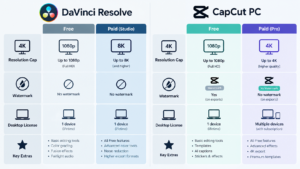
Both platforms offer robust free options, but their monetization models differ:
4. Head-to-Head: Which One Should You Choose?
Choose CapCut PC If:
- You focus heavily on short-form content (TikTok, Instagram Reels, YouTube Shorts).
- You rely on automated captions, trendy text animations, and quick template workflows.
- You edit on a standard consumer laptop or PC without a high-end dedicated graphics card.
- You want to finish and upload videos within an hour.
Choose DaVinci Resolve If:
- You produce long-form YouTube videos, cinematic vlogs, documentaries, or commercial films.
- You want absolute control over color correction, cinematic grading, and multi-track audio mixing.
- Your computer is equipped with a powerful GPU and ample RAM.
- You want a professional, permanent free software package with zero export watermarks and no recurring subscription trap.
Conclusion
Ultimately, CapCut PC and DaVinci Resolve do not compete for the same user—they cater to entirely different publishing ecosystems. If your workflow demands speed, social media automation, and instant publishing, CapCut wins. If your goal is professional growth, cinematic depth, and pristine audio-visual finishing, DaVinci Resolve stands unmatched. Try installing the free version of both to test which interface fits your next content creation project.
Frequently Asked Questions
1. Is DaVinci Resolve completely free to use?
Yes. The standard version of DaVinci Resolve is entirely free, features no watermarks, and supports exports up to UHD 4K resolution. Blackmagic Design also offers a paid “Studio” version for advanced enterprise and multi-user studio pipelines.
2. Does CapCut PC add a watermark to exported videos?
Basic video exports on the free tier of CapCut PC do not feature watermarks. However, certain premium templates, cloud assets, and advanced effects require upgrading to CapCut Pro.
3. Can CapCut PC handle 4K video editing?
Yes, CapCut PC can edit and export 4K footage, though hardware capabilities and subscription tiers may apply depending on the specific preset and export parameters chosen.
4. Which software is better for beginners with no editing experience?
CapCut PC is significantly easier for absolute beginners. Its drag-and-drop interface, automated features, and pre-built transitions let users create videos on day one without steep learning curves.
Sources & References
- Blackmagic Design DaVinci Resolve Official Documentation & Feature Matrix
- CapCut Desktop Creator Guidelines and Specifications
- Comparative Industry Post-Production Workflows (2026 Editorial Reviews)