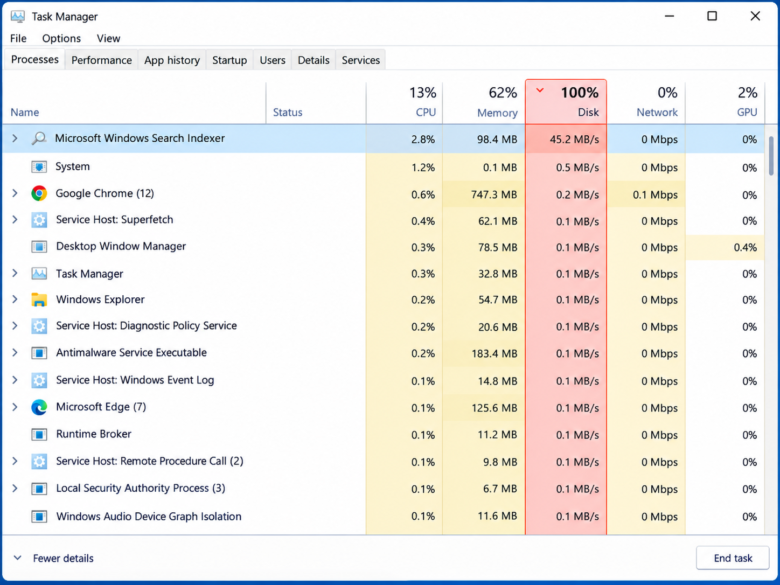
If your Windows computer has suddenly become sluggish, unresponsive, or is taking forever to open basic applications, you might be experiencing a disk usage bottleneck. When you open the Windows Task Manager to investigate, you may see a specific process—SearchIndexer.exe—hogging your system resources and pushing your disk usage to 100%.
This is one of the most common performance issues for Windows 10 and Windows 11 users, particularly those still relying on traditional Hard Disk Drives (HDDs). While the Windows Search Indexer is designed to make your daily computer usage faster, it can sometimes get stuck in a loop, become corrupted, or try to index too many files at once, effectively crippling your PC’s performance.
In this comprehensive guide, we will explore exactly what SearchIndexer.exe is, why it causes 100% disk usage, and the most effective, step-by-step methods to fix this problem permanently.
What is SearchIndexer.exe?
To fix the problem, it is important to first understand what the process actually does. SearchIndexer.exe is the executable file that runs the Windows Search service.
When you click the Start menu and type a query to find a document, an app, or a setting, Windows doesn’t scan your entire hard drive from scratch right in that moment. Doing so would take several minutes. Instead, Windows uses SearchIndexer.exe in the background to constantly scan your files, folders, emails, and metadata, creating a highly organized database (an “index”).
Because this index is pre-built, your search results appear almost instantly when you need them. Under normal circumstances, SearchIndexer.exe runs quietly in the background, utilizing only a tiny fraction of your CPU and RAM, and barely touching your disk.
Why is SearchIndexer.exe Causing 100% Disk Usage?
If this background service is designed to be lightweight, why is it suddenly maximizing your disk usage? There are several primary culprits:
- Corrupted Search Index: If the database file that Windows builds becomes corrupted due to a sudden power loss, a bad sector on your hard drive, or a software glitch, the indexer will continuously try to read and repair it, causing an infinite loop of disk activity.
- Indexing Too Many Files: If you recently transferred hundreds of thousands of small files to your computer (such as a massive code repository, a huge library of small text files, or complex cache folders), the indexer will aggressively try to catalog them all at once.
- Outdated Mechanical Hard Drives (HDD): HDDs have physical spinning platters and read/write heads. They are significantly slower at processing thousands of random background read/write requests compared to modern Solid State Drives (SSDs). An HDD will hit 100% utilization much faster under indexing pressure than an SSD.
- Interference from Third-Party Antivirus: Sometimes, your antivirus software scans the files that the Search Indexer is trying to catalog, creating a conflict where both programs are constantly reading the same files over and over.
Now that we understand the root cause, let’s move on to the proven solutions to resolve the SearchIndexer.exe 100% disk usage error.
Step 1: Restart the Windows Search Service
The simplest and least invasive way to fix a software loop is to restart the service that is causing the problem. Often, the Search Indexer is simply stuck on a specific file and a quick restart will clear the pipeline.
- Press the Windows Key + R on your keyboard to open the Run dialog box.
- Type
services.mscand press Enter. This will open the Windows Services manager. - Scroll down the long alphabetical list until you find the service named Windows Search.
- Right-click on Windows Search and select Restart from the context menu. (If Restart is grayed out, click Stop, wait a few seconds, and then click Start).
- Open your Task Manager again and observe your disk usage. If it drops back to normal levels, the temporary glitch is resolved.
Step 2: Rebuild the Windows Search Index
If restarting the service did not work, the index database itself is likely corrupted. Rebuilding the index forces Windows to delete the broken database and create a brand-new, clean one from scratch.
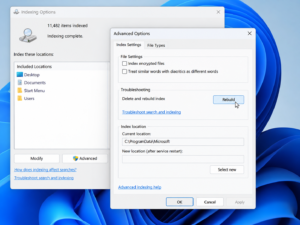
- Click the Windows Start button and type Control Panel, then open the app.
- Change the “View by” option in the top right corner to Large icons or Small icons.
- Click on Indexing Options.
- In the Indexing Options window, click the Advanced button (you will need Administrator privileges for this).
- Under the “Troubleshooting” section, click the Rebuild button.
- A warning prompt will appear telling you that rebuilding the index might take a long time to complete. Click OK.
Note: While the index is rebuilding, your search results might be incomplete, and you may temporarily see high disk usage. Let your PC sit idle for an hour or two so it can finish the process uninterrupted.
Step 3: Run the Search and Indexing Troubleshooter
Windows comes with built-in automated troubleshooters designed to find and fix background errors without manual intervention.
- Press Windows Key + I to open the Settings app.
- Navigate to Update & Security > Troubleshoot (For Windows 11, go to System > Troubleshoot).
- Click on Additional troubleshooters (or Other troubleshooters).
- Scroll down, locate Search and Indexing, and click Run the troubleshooter.
- The tool will ask you what problems you are noticing. Check the box next to “Search or indexing is slowing down the computer” and click Next.
- Follow the on-screen prompts to allow Windows to apply the recommended automated fixes.
Step 4: Modify Indexing Locations (Exclude Large Folders)
If you have massive folders full of development files, temporary files, or large video archives, Windows does not need to index them. Excluding these folders takes the pressure off SearchIndexer.exe.
- Open Indexing Options from the Control Panel as we did in Step 2.
- Click the Modify button.
- You will see a list of indexed locations. Expand your
C:drive. - Uncheck folders that contain massive amounts of non-essential search data (for example, the
AppDatafolder, or any large custom folders where you store thousands of small project files). - Click OK to save the changes. The indexer will stop scanning those heavy directories, instantly dropping your disk usage.
Step 5: Perform SFC and DISM Scans
Sometimes the SearchIndexer.exe file itself, or the Windows operating system files it relies on, become corrupted. System File Checker (SFC) and Deployment Image Servicing and Management (DISM) are command-line tools that repair critical Windows files.
- Click the Start button, type
cmd, right-click Command Prompt, and select Run as administrator. - Type the following command and press Enter:
sfc /scannow - Wait for the scan to reach 100%. If it finds and fixes errors, restart your PC.
- If the problem persists, open the Command Prompt as an administrator again and type:
DISM /Online /Cleanup-Image /RestoreHealth - Press Enter and allow the process to complete (this may require an active internet connection to download replacement files from Microsoft).
Step 6: Disable the Windows Search Service (The Last Resort)
If absolutely nothing else works, or if you are using an older laptop with a very slow hard drive that simply cannot handle background indexing, you can disable the Windows Search service entirely.
Warning: Disabling this will stop SearchIndexer.exe permanently, which will instantly fix your 100% disk usage. However, it will also break the Start menu search functionality. You will have to use alternative third-party search tools (like Everything by voidtools) to find files.
- Press Windows Key + R, type
services.msc, and press Enter. - Find Windows Search in the list, right-click it, and select Properties.
- In the “Startup type” dropdown menu, select Disabled.
- Click the Stop button under “Service status” to halt it immediately.
- Click Apply and then OK. Restart your computer.
The Ultimate Fix: Upgrade to an SSD
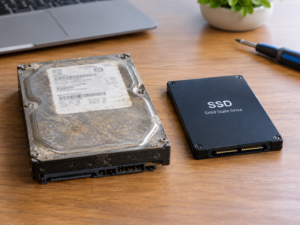
If you have tried everything and your PC still regularly hits 100% disk usage during basic tasks, the problem is likely hardware-related. Traditional mechanical hard drives (HDDs) are fundamentally incapable of keeping up with the heavy background processing of modern operating systems like Windows 10 and Windows 11.
Upgrading your primary boot drive to a Solid State Drive (SSD) is the single most impactful upgrade you can perform. SSDs handle thousands of simultaneous read/write requests with ease. Even if SearchIndexer.exe decides to run a heavy scan, an SSD will process it in the background without slowing down your active applications.
Conclusion
Seeing 100% disk usage in your Task Manager can be incredibly frustrating, but SearchIndexer.exe is usually trying to do its job, albeit aggressively. By restarting the service, rebuilding your corrupted index, narrowing down the folders Windows needs to scan, or repairing system files, you can usually bring your disk usage back down to a healthy 0-5% at idle. If software fixes fail to provide a smooth experience, transitioning to an SSD will guarantee that background services never bottleneck your workflow again.
Frequently Asked Questions
Is SearchIndexer.exe a virus or malware?
No, SearchIndexer.exe is a legitimate, core Windows component developed by Microsoft. However, in rare cases, malware can disguise itself with the same name. If the file is located in C:\Windows\System32, it is safe. If you find it running from a random folder, run a malware scan immediately.
Can I delete SearchIndexer.exe?
No, you cannot and should not attempt to delete the SearchIndexer.exe file. Deleting critical System32 files can corrupt your Windows installation and cause system instability. If you want to stop it, you should disable the “Windows Search” service via services.msc instead.
Why does my disk usage spike to 100% when I first boot up my PC?
It is completely normal for disk usage to spike to 100% for a few minutes immediately after logging into Windows. During startup, your operating system is launching background services, checking for updates, and loading startup apps. If it stays at 100% for more than 10 minutes, then you need to apply the troubleshooting steps above.
Will disabling Windows Search delete my files?
No. Disabling the Windows Search service only turns off the indexing tool. Your files, folders, and applications remain perfectly safe on your hard drive; Windows simply won’t be able to search for them as quickly through the Start menu.
Sources and References
- Microsoft Support: Fix problems in Windows Search (Official Microsoft documentation on repairing the Search Indexer).
- Microsoft Learn: Understanding Windows Search performance and indexing behavior.
- TechNet Forums: Community discussions and verified solutions for Windows 10/11 high disk utilization issues.