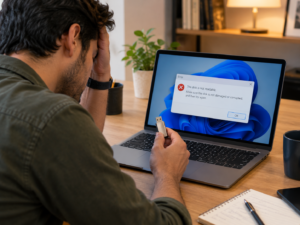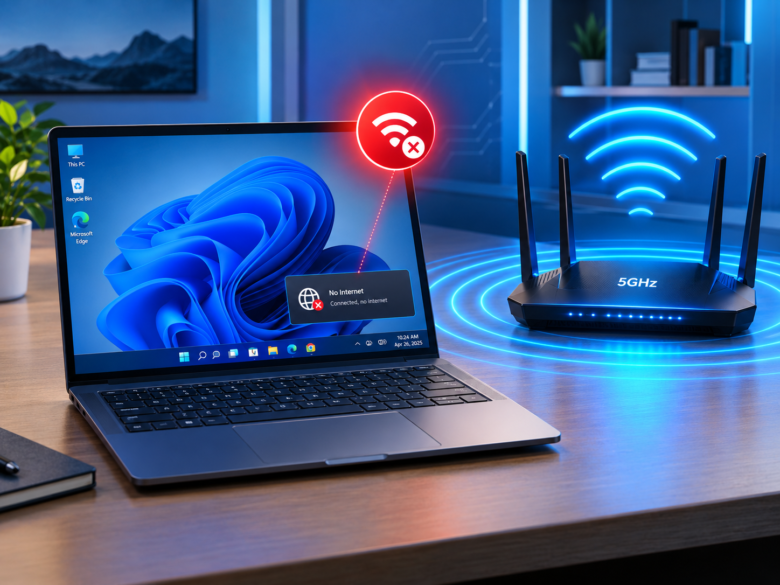
If you have recently upgraded to a modern router, connecting to the 5GHz Wi-Fi band is a logical step to achieve faster internet speeds and lower latency. However, a common and frustrating issue many Windows 11 users face is the 5GHz Wi-Fi randomly disconnecting, dropping the connection, or switching back to the slower 2.4GHz band without warning.
While the 5GHz band offers significantly faster data transmission compared to 2.4GHz, its higher frequency means it has a shorter range and struggles to penetrate solid objects like walls and furniture. When you combine these physical limitations with Windows 11 software bugs, outdated network drivers, or aggressive power-saving settings, your connection can become highly unstable.
This comprehensive guide will walk you through the most effective, tested solutions to permanently fix the 5GHz Wi-Fi disconnecting issue on Windows 11, ensuring a stable and blazing-fast internet connection.
Why Does 5GHz Wi-Fi Keep Dropping on Windows 11?
Before diving into the technical fixes, it is crucial to understand why this specific frequency is dropping. Diagnosing the root cause can save you time and help you prevent the issue from recurring.
- Distance and Physical Obstacles: The 5GHz frequency cannot travel as far as 2.4GHz. If your Windows 11 PC is located far from the router, or if there are multiple concrete walls in between, the signal will easily drop.
- Aggressive Power Management: Windows 11 has built-in power management features that sometimes turn off the Wi-Fi adapter to save battery life, causing abrupt disconnections.
- Outdated or Corrupted Network Drivers: Your PC’s Wi-Fi card requires the latest drivers to communicate properly with the Windows 11 operating system. Incompatible drivers are a leading cause of network drops.
- Channel Interference: If you live in an apartment building, your neighbors’ routers might be broadcasting on the same 5GHz channel, causing overlapping signals and dropped packets.
- Fast Startup Glitches: The Windows 11 Fast Startup feature can sometimes prevent hardware drivers (like your network card) from initializing correctly upon booting.
Step-by-Step Fixes for 5GHz Wi-Fi Disconnecting in Windows 11
1. Disable Power Management for Your Network Adapter
Windows 11 is designed to conserve energy, especially on laptops. By default, it may turn off your Wi-Fi adapter to save power during periods of perceived inactivity, which inadvertently drops your 5GHz connection.
How to disable this setting:
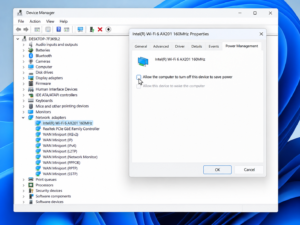
- Right-click the Start button on your Windows 11 taskbar and select Device Manager.
- Expand the Network adapters section by clicking the small arrow next to it.
- Locate your primary Wi-Fi adapter (it will usually have “Intel,” “Realtek,” “Broadcom,” or “Qualcomm” followed by “Wireless” or “Wi-Fi” in the name).
- Right-click the Wi-Fi adapter and select Properties.
- Navigate to the Power Management tab.
- Uncheck the box that says Allow the computer to turn off this device to save power.
- Click OK and restart your computer.
2. Update, Roll Back, or Reinstall Network Drivers
Corrupted or outdated drivers fail to maintain the high-speed synchronization required for 5GHz networks. You have three approaches here: update to the newest driver, roll back to a previously working one, or completely reinstall it.
To Update the Driver:
- Open Device Manager and expand Network adapters.
- Right-click your Wi-Fi adapter and select Update driver.
- Choose Search automatically for drivers. If Windows finds a new driver, install it.
To Reinstall the Driver (Highly Recommended): If updating does not work, a clean installation often clears out corruption.
- Right-click your Wi-Fi adapter in Device Manager and select Uninstall device.
- A warning box will appear. Do not check the box that says “Attempt to remove the driver for this device” just yet. Click Uninstall.
- Restart your PC. Upon rebooting, Windows 11 will automatically detect the hardware and reinstall a fresh copy of the default driver.
3. Change the 5GHz Wi-Fi Channel on Your Router
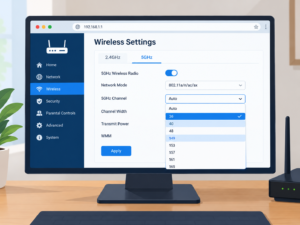
Routers transmit 5GHz Wi-Fi over specific channels (such as 36, 40, 44, 149, 153, etc.). If your router is set to “Auto,” it might be hopping between channels or sitting on a highly congested channel being used by your neighbors. Setting a static, less crowded channel can instantly stabilize your connection.
- Find your router’s IP address (commonly
192.168.1.1or192.168.0.1) and type it into your web browser. - Log in using the admin credentials found on the back of your router.
- Navigate to the Wireless, WLAN, or Wi-Fi Settings section.
- Locate the 5GHz network settings.
- Find the Channel option (it is usually set to Auto). Change it to a specific channel. Channels 36, 40, 44, or 149 are usually safe bets.
- Save the settings and reboot your router. Reconnect your Windows 11 PC and monitor the stability.
4. Flush the DNS and Reset TCP/IP Stack
Sometimes the issue is not with the physical adapter, but with how Windows 11 is routing network traffic. Resetting your network’s IP configuration and flushing the DNS cache can resolve underlying software conflicts that cause the 5GHz band to disconnect.
- Click the Windows Start button, type cmd, right-click on Command Prompt, and select Run as administrator.
- Once the black window opens, type the following commands exactly as shown, pressing Enter after each one:
netsh winsock reset
netsh int ip reset
ipconfig /release
ipconfig /renew
ipconfig /flushdns
- After executing all the commands, close the Command Prompt and restart your computer to apply the changes.
5. Separate Your 2.4GHz and 5GHz Bands (Disable Smart Connect)
Modern routers feature a technology called “Smart Connect” or “Band Steering.” This feature broadcasts both the 2.4GHz and 5GHz networks under a single Wi-Fi name (SSID). The router automatically decides which band your Windows 11 PC should use. Unfortunately, if you are on the edge of the 5GHz range, the router will constantly bounce your PC back and forth between 2.4GHz and 5GHz, resulting in brief disconnects.
How to fix this:
- Log into your router’s admin panel via your web browser.
- Go to your Wireless Settings.
- Look for a setting named Smart Connect, Band Steering, or Single SSID. Disable it.
- Rename your networks so they are distinct (e.g.,
HomeNetwork_2.4GandHomeNetwork_5G). - On your Windows 11 PC, connect specifically to the
HomeNetwork_5Gnetwork.
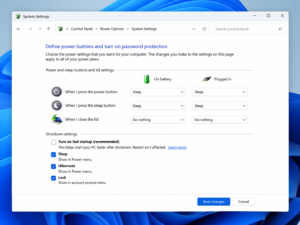
6. Disable Fast Startup
Fast Startup acts as a hybrid between shutting down and hibernating. It saves your current system state to a file to speed up boot times. However, this can cause Windows 11 to load a bugged state for your Wi-Fi driver, leading to dropouts on the 5GHz frequency.
- Press the Windows Key + R to open the Run dialog box.
- Type
controland press Enter to open the Control Panel. - Change the View by (top right) to Large icons, then click on Power Options.
- On the left sidebar, click Choose what the power buttons do.
- Click the shield icon that says Change settings that are currently unavailable.
- Under Shutdown settings, uncheck Turn on fast startup (recommended).
- Click Save changes and restart your computer.
Conclusion
Dealing with a dropping 5GHz Wi-Fi connection on Windows 11 can drastically hinder your productivity, gaming, and streaming experiences. Because the 5GHz band is highly sensitive to physical barriers and driver mismatches, a combination of adjusting Windows software settings and tweaking your router is usually required. By systematically disabling power management, updating your network drivers, separating your network bands, and clearing your DNS cache, you can eliminate these disconnections and enjoy uninterrupted high-speed internet.
Frequently Asked Questions
Q1: Why does my Windows 11 PC only drop the 5GHz network, but 2.4GHz works fine?
The 5GHz frequency operates on shorter radio waves, meaning it cannot penetrate solid objects (like walls, doors, or floors) as easily as the 2.4GHz band. If your PC is too far from the router, the 5GHz signal weakens to the point of dropping, while the 2.4GHz signal remains strong enough to maintain a connection.
Q2: Should I force my Wi-Fi adapter to prefer 5GHz?
Yes, if you are close to the router, forcing preference can help. You can do this by opening Device Manager > Network Adapters > Properties > Advanced tab. Look for “Preferred Band” and set it to “Prefer 5GHz band.” This stops Windows from aggressively switching to 2.4GHz.
Q3: Does upgrading my router firmware help with Windows 11 disconnects?
Absolutely. Router manufacturers frequently release firmware updates that improve compatibility with modern operating systems like Windows 11 and patch known bugs related to the 5GHz radio broadcast. You can update this via your router’s web admin panel.
Q4: What are DFS channels, and should I use them for 5GHz?
Dynamic Frequency Selection (DFS) channels (usually channels 52-144) share space with military and weather radars. If your router detects radar signals, it will automatically drop your Wi-Fi connection and switch channels to avoid interference. If you experience random drops, avoid DFS channels and stick to standard channels like 36, 40, or 149.
Q5: Can a VPN cause my 5GHz Wi-Fi to drop?
While a VPN won’t cause the physical Wi-Fi connection to drop from the router, outdated VPN client network adapters can conflict with Windows 11’s network stack, causing you to lose internet access. If you suspect your VPN, try uninstalling its virtual network adapter in Device Manager and reinstalling the software.
Sources & References
- Microsoft Support: Troubleshooting Network Connection issues in Windows.
- Intel Wireless Support: Recommended settings for 802.11ax/ac wireless connectivity.
- Cisco Networking Academy: Understanding 2.4GHz vs 5GHz Wireless Frequencies and Interference.