Have you ever spent hours recording the perfect gameplay, a crucial business presentation, or a detailed software tutorial, only to realize during playback that the audio and video are completely out of sync? It is an incredibly frustrating experience. You see your lips moving, but the words follow a second later, or the game’s explosion sound happens long after the visual effect has faded.
Audio desync is one of the most common issues faced by content creators, gamers, and educators who rely on screen recording software like OBS Studio, Camtasia, Bandicam, or even built-in OS screen recorders. But don’t worry—this issue is completely fixable. In this comprehensive guide, we will explore why your audio goes out of sync with your video and provide step-by-step solutions to fix it using free and professional tools, as well as how to prevent it from happening in your future recordings.
Why Does Audio Go Out of Sync in Screen Recordings?
Before diving into the solutions, it is essential to understand the root cause of the problem. Audio and video desync usually happens due to one of the following reasons:
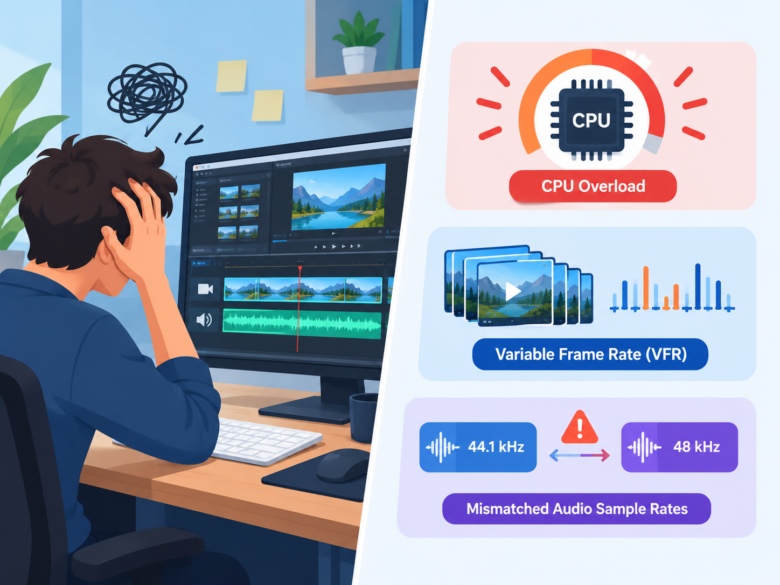
1. Variable Frame Rate (VFR) vs. Constant Frame Rate (CFR)
The most common culprit behind audio desync is the Variable Frame Rate (VFR). Many modern recording devices, smartphones (like iPhones), and software record video in VFR to save storage space. When the screen action is slow, the software captures fewer frames; when the action is fast, it captures more. However, audio is always recorded at a constant rate. When you import a VFR video into a video editor that expects a Constant Frame Rate (CFR), the timeline gets confused, causing the audio to drift further out of sync the longer the video plays.
2. High CPU or GPU Usage
If you are playing a heavy PC game or running multiple demanding applications while recording your screen, your CPU or GPU might max out. When your system is overloaded, the screen recorder might drop video frames to keep up, but the audio continues recording smoothly. This dropped frame scenario instantly creates a mismatch between what you see and what you hear.
3. Incorrect Sample Rate Settings
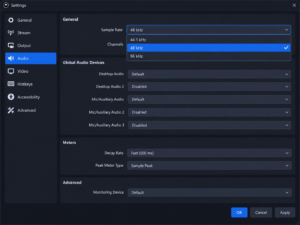
Audio sample rates (usually 44.1 kHz or 48 kHz) need to match across your recording software and your operating system’s sound settings. If your microphone is set to 48 kHz in Windows but your recording software (like OBS) is set to 44.1 kHz, a gradual desync will occur over time.
4. Corrupted Drivers or Outdated Software
Sometimes, the issue isn’t with the settings but with the software itself. Outdated audio drivers, an old version of your screen recorder, or pending Windows updates can cause internal latency that delays the audio track during the encoding process.
Method 1: How to Fix Audio Desync Using HandBrake (Best Free Solution)
If your video is already recorded and the audio is progressively drifting out of sync (it starts fine but gets worse at the end), the issue is almost certainly Variable Frame Rate (VFR). The best way to fix this is by converting the VFR video to CFR using a free, open-source tool called HandBrake.
Step-by-Step Guide for HandBrake:
- Download and Install HandBrake: Go to the official HandBrake website and download the software for your operating system (Windows, Mac, or Linux). Install and open it.
- Import Your Video: Drag and drop your out-of-sync video file into the HandBrake interface, or click on “File” to browse for your video.
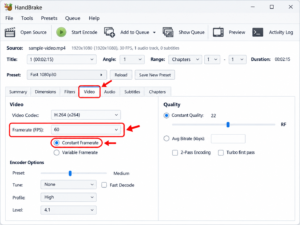
- Select the Video Tab: Once the video is loaded, look at the tabs below the source information and click on the “Video” tab.
- Change to Constant Frame Rate: Under the “Framerate (FPS)” dropdown, select the frame rate your video was supposed to be (e.g., 30 or 60). Right below this dropdown, you will see two radio buttons: “Variable Framerate” and “Constant Framerate.” Select Constant Framerate. This is the crucial step that forces the video to align perfectly with the audio timeline.
- Adjust Quality (Optional): Ensure the “Constant Quality” slider is set around 20-22 for standard HD video so you don’t lose visual quality during the conversion.
- Choose Destination and Export: At the bottom of the window, click “Browse” to choose where you want to save the fixed file. Give it a new name. Finally, click the green “Start Encode” button at the top.
Once HandBrake finishes processing, your new video file will have a Constant Frame Rate, and the audio will be perfectly matched from start to finish. You can now import this file into any video editor without issues.
Method 2: Fixing Audio Out of Sync in Adobe Premiere Pro
If you are a video editor using Adobe Premiere Pro and notice a static desync (the audio is off by the exact same amount of time throughout the entire video), you can easily fix this directly in the timeline.
Step-by-Step Guide for Premiere Pro:
- Import the Footage: Bring your screen recording into Premiere Pro and drag it onto your timeline.
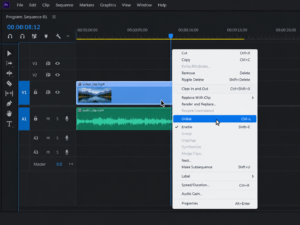
- Unlink Audio and Video: By default, the audio and video tracks are linked together. Right-click on the video clip in the timeline and select Unlink. You can now move the audio track independently of the video track.
- Find a Sync Point: Look for a clear visual and audio cue in your recording. This could be a mouse click, a character jumping in a game, or the moment you clap your hands.
- Nudge the Audio: Zoom closely into the timeline. Click on the audio track and drag it left or right to align the waveform peak (the loud sound) perfectly with the visual cue on the video track.
- Relink the Tracks: Once perfectly aligned, highlight both the video and audio tracks, right-click, and select Link to lock them back together so you don’t accidentally move them again while editing.
Note: If the audio starts synced but drifts later, Premiere Pro might be struggling with VFR. In modern versions, Premiere handles VFR better, but if it still fails, use the HandBrake method first.
Method 3: Fixing Playback Sync in VLC Media Player
Sometimes, the video file itself is completely fine, but your media player is lagging, causing a temporary desync during playback. If you just want to watch the video without editing it, VLC Media Player has a brilliant built-in feature to adjust audio timing on the fly.
Step-by-Step Guide for VLC:
- Open your video in VLC Media Player.
- As the video plays, press the ‘J’ key on your keyboard to delay the audio (if the audio is playing ahead of the video).
- Press the ‘K’ key to bring the audio forward (if the audio is lagging behind the video).
- Each keypress adjusts the audio by 50 milliseconds. Keep pressing until the voices match the lip movements.
This method does not permanently change the file; it only fixes the sync while you are watching it in VLC.
How to Prevent Audio Desync in Future Screen Recordings
Fixing broken video takes time. The best approach is to configure your system properly so you never have to deal with out-of-sync audio again. Here are the best preventative measures:
1. Match Your Audio Sample Rates
Ensure your Windows sound settings and your screen recorder settings match exactly.
- Go to Windows Settings > System > Sound > Device Properties > Additional device properties > Advanced.
- Note the Default Format (e.g., 2 channel, 24 bit, 48000 Hz).
- Open your screen recorder (e.g., OBS Studio), go to Settings > Audio, and ensure the Sample Rate is also set to 48 kHz.
2. Record in Constant Frame Rate (CFR)
If your screen recording software allows it, always choose CFR over VFR. In OBS Studio, this is the default behavior. However, if you are using Nvidia ShadowPlay or mobile recorders, they often default to VFR. Use robust software like OBS Studio where you have strict control over frame pacing.
3. Lower Your Recording Settings
If dropped frames are causing your desync because your PC can’t handle the load, you need to lower your settings. Reduce your recording resolution from 4K to 1080p, or lower the frame rate from 60 FPS to 30 FPS. Also, try running your games on slightly lower graphics settings to free up GPU resources for the screen recorder.
4. Update Your Drivers
Always keep your graphics card drivers (Nvidia/AMD) and your motherboard’s audio drivers (like Realtek) up to date. Manufacturers frequently release patches that fix encoding and latency bugs.
Conclusion
Dealing with audio out of sync in screen recordings is a common hurdle, but it is rarely a permanent disaster. By understanding the difference between Variable Frame Rate and Constant Frame Rate, and utilizing powerful tools like HandBrake or Premiere Pro, you can easily salvage your hard work. Furthermore, taking a few minutes to match your audio sample rates and lower your system load can ensure all your future screen recordings come out perfectly synchronized, saving you hours of frustrating editing time.
Frequently Asked Questions
Q1: Why does the audio sync perfectly at the beginning but get worse at the end?
This is the classic symptom of a Variable Frame Rate (VFR) recording. Because the video frame rate fluctuates but the audio rate stays constant, the two tracks gradually separate. Converting the video to a Constant Frame Rate (CFR) using HandBrake is the best solution.
Q2: Can I fix out-of-sync audio on my smartphone?
Yes. You can use mobile video editing apps like CapCut, LumaFusion, or KineMaster. Simply import the video, detach the audio from the video track, and manually nudge the audio track left or right until it matches the visual cues.
Q3: Does converting video with HandBrake reduce its quality?
It can if you use the wrong settings. To preserve quality, ensure you use the “Constant Quality” slider (RF value) and keep it between 18 and 22. This will convert the frame rate without causing noticeable pixelation or compression artifacts.
Q4: Is OBS Studio better at preventing audio desync than built-in Windows Game Bar?
Generally, yes. OBS Studio gives you granular control over bitrates, audio sample rates, and strict Constant Frame Rate settings, making it much more reliable for professional recordings compared to background recorders like Xbox Game Bar or Nvidia ShadowPlay.
Q5: Can a slow hard drive cause audio desync?
Yes. If you are recording a high-bitrate video directly to an old, fragmented mechanical hard drive (HDD), the drive might struggle to write the massive amount of data in real-time, resulting in dropped frames and audio desync. Recording to an SSD is highly recommended.
Sources and References
- HandBrake Documentation: Official guidelines on converting VFR to CFR to resolve audio drift.
- Adobe Support Community: Troubleshooting guides for managing Variable Frame Rate media in Premiere Pro timelines.
- OBS Studio Knowledge Base: Best practices for matching sample rates and managing CPU encoding loads to prevent dropped frames.