FC File management rarely gets the spotlight in tech discussions, yet it remains the quiet bottleneck of daily computing. Every time you download a software package, back up a massive project directory, or try to email a folder of high-resolution images, you rely on a file archiver.
For the past twenty years, one name has dominated this space: 7-Zip. It is the undisputed king of free compression. However, a modern, highly capable alternative has been steadily gaining ground among power users. PeaZip offers a drastically different approach to user interface and format support while promising the same open-source reliability.
To determine which utility actually deserves the default spot on your Windows or Linux machine, we need to look past the marketing and focus on raw performance. This head-to-head comparison breaks down their underlying compression algorithms, graphical interfaces, security standards, and real-world speed test results.
The Core Philosophy: Utility vs. Accessibility
Before examining the benchmark data, you have to understand the fundamental difference in how these two programs are built. They are not simply clones of one another.
7-Zip is a tool built by a developer for people who want results, not aesthetics. Created by Igor Pavlov in 1999, its interface has barely changed since the Windows XP era. It looks dated, entirely devoid of colorful icons or friendly setup wizards. But beneath that brutalist exterior lies the LZMA and LZMA2 algorithms—some of the most efficient mathematical compression engines ever written. 7-Zip focuses entirely on doing one job perfectly: crushing data into the smallest possible mathematical footprint using minimal system resources.
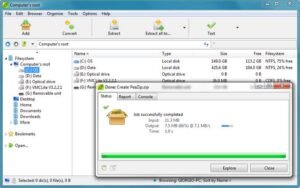
PeaZip, created by Giorgio Tani, takes a distinctly different route. It is essentially a comprehensive graphical frontend that binds together dozens of different open-source compression technologies—including 7-Zip’s own engine. PeaZip prioritizes the user experience. It features a full-fledged file manager, a visually appealing interface that respects modern Windows 11 design language, and support for over 200 archive extensions out of the box.
Real-World Compression Testing
Raw specifications only tell half the story. To see how these tools handle everyday workloads, we ran them through two distinct stress tests on a modern mid-range PC setup (Ryzen 5 CPU, 16GB RAM, NVMe SSD). Both programs were set to their “Ultra” compression presets to see how hard they could push the hardware.
Test Scenario A: The Highly Compressible Dataset This dataset contained 2GB of raw text files, source code repositories, HTML documents, and uncompressed bitmap images. These are files with massive amounts of redundant data—a perfect scenario for a compression algorithm to show its strength.
- 7-Zip (LZMA2): Crushed the 2GB folder down to an astonishing 340MB. The process took exactly 42 seconds.
- PeaZip (Standard ZIP): Reduced the folder to 450MB, finishing in 28 seconds.
- PeaZip (PEA Format): Achieved a 380MB file size, taking 45 seconds.
Test Scenario B: The Incompressible Dataset This dataset was a 5GB folder packed with MP4 videos, heavily compressed JPEG photos, and MP3 audio files. Because these files are already compressed by their own media codecs, archive utilities usually struggle to shrink them further without wasting massive amounts of CPU time.
- 7-Zip (LZMA2): Managed to squeeze the 5GB folder down to 4.85GB. The CPU worked at 100% capacity for 3 minutes and 15 seconds to achieve this marginal gain.
- PeaZip (Standard ZIP): Produced a 4.90GB file, but finished in a brisk 1 minute and 10 seconds.
The Speed vs. Size Tradeoff The data reveals a clear pattern. If your absolute priority is saving hard drive space or staying under an email attachment limit, 7-Zip’s native .7z format is mathematically superior. It analyzes data deeper and builds better dictionaries. However, PeaZip proves highly effective for users who prioritize time. Furthermore, because PeaZip actually utilizes 7-Zip’s backend code, you can tell PeaZip to output a .7z file, at which point the compression ratios become identical.
Format Support and Security Protocols
Handling legacy or obscure file types is a common headache for digital archivists. If you download an old .RAR file from a forum, a .TAR.GZ from a Linux repository, or a .DMG from a Mac user, you need a tool that won’t throw an error code. 7-Zip natively unpacks around 30 different formats. It covers all the heavy hitters you will encounter daily.
PeaZip, however, is a digital Swiss Army knife. It supports opening and extracting over 225 different file extensions. If you frequently work across different operating systems or deal with obscure legacy archives (like .ACE or .LHA), PeaZip guarantees you will never be locked out of a file.
Encryption and Password Protection Both utilities take security seriously, offering AES-256 encryption—the same standard utilized by banks and government agencies. 7-Zip allows you to encrypt both the file contents and the file names, meaning an intruder cannot even see what is inside the archive without the password. PeaZip matches this AES-256 capability but adds a built-in secure password manager and a random password generator, making it slightly more convenient for users who frequently lock sensitive documents.
Head-to-Head Comparison
| Feature | 7-Zip | PeaZip |
| Software License | Open Source (GNU LGPL) | Open Source (GNU LGPL) |
| Native Compression Engine | LZMA / LZMA2 | Multiple (Including LZMA2, PEA) |
| Extraction Support | ~30 Formats | 225+ Formats |
| User Interface | Utilitarian / Minimalist | Modern / File-Manager Style |
| Encryption Standard | AES-256 | AES-256 |
System Integration and Usability
The way software integrates with your operating system dictates how often you will actually use it.
Windows Context Menu 7-Zip integrates deeply into the Windows right-click context menu. It operates silently in the background. You right-click a folder, hover over 7-Zip, and select “Add to archive.” It is muscle memory for millions of IT professionals.
PeaZip also integrates into the context menu, but its standalone application is far more robust. While 7-Zip’s application is basically just a barebones file tree, PeaZip functions as a complete replacement for Windows Explorer. It includes features like file hashing (to verify file integrity), secure deletion (wiping files so they cannot be recovered), and tabbed browsing.
Resource Consumption 7-Zip is famously lightweight. The installer is barely 1.5MB, and it consumes virtually zero RAM when idling. PeaZip is slightly heavier, with an installer around 10MB, and requires more memory to render its advanced graphical interface. For a modern computer, this difference is negligible. But if you are deploying software to a fleet of ten-year-old office laptops, 7-Zip’s microscopic footprint is a massive advantage.
Final Verdict: Which Archiver Belongs on Your PC?
Both 7-Zip and PeaZip represent the absolute best of the open-source software community. They are free, devoid of advertisements, and infinitely more powerful than the native ZIP tool built into Windows.
- Choose 7-Zip if: You want a “set it and forget it” tool. If you appreciate minimalist software that runs in the background, consumes zero unnecessary resources, and provides the absolute tightest compression ratios available, 7-Zip remains the undefeated champion.
- Choose PeaZip if: You deal with a massive variety of file formats and prefer a modern, aesthetically pleasing interface. The built-in secure password generator, file hashing tools, and ability to extract obscure legacy formats make PeaZip the superior choice for users who want their archiver to act as a comprehensive file management suite.
For the average consumer, PeaZip’s friendly interface makes it the easier recommendation today. But for the IT veteran, 7-Zip’s brutal efficiency will always hold the crown.
Frequently Asked Questions
Are both 7-Zip and PeaZip completely free for commercial use?
Yes. Both applications are released under the GNU LGPL open-source license. This means you can install them on personal computers, government machines, or corporate enterprise networks without ever paying a licensing fee.
Why does 7-Zip look so old?
The developer, Igor Pavlov, strictly prioritizes performance and code efficiency over graphical aesthetics. By keeping the UI barebones, 7-Zip maintains a microscopic file size and runs flawlessly on operating systems as old as Windows NT and as new as Windows 11.
Can PeaZip open RAR files?
Yes. PeaZip can easily open, browse, and extract .RAR files. However, due to licensing restrictions surrounding the proprietary RAR algorithm, neither PeaZip nor 7-Zip can create new RAR archives. You can only extract them.
What is the PEA format in PeaZip?
PEA stands for Pack, Encrypt, Authenticate. It is PeaZip’s proprietary archive format designed specifically for security. It features built-in integrity checking and authenticated encryption, making it highly resilient against data corruption and tampering.
Does compressing a file damage the original data?
No. Both 7-Zip and PeaZip use “lossless” compression. Unlike compressing a video or a JPEG photo (which permanently throws away data to save space), lossless data compression reconstructs the exact original file bit-for-bit upon extraction.
Sources
- The 7-Zip Official Documentation and LZMA SDK Specifications
- PeaZip Project GitHub Repository and Format Compatibility Matrix
- Independent Open-Source Software Benchmarks (2026 Archive Testing)