Creating stunning 3D artwork using AI image generators like Midjourney, DALL-E 3, or Stable Diffusion is an incredible experience until your output renders with murky, underexposed, or unnecessarily dark lighting. Lighting is the foundational element of any 3D scene, dictating the mood, depth, and overall visual appeal. When AI misinterprets your prompt, even the most beautifully designed 3D characters or environments can become lost in the shadows.
If you are consistently struggling with poorly lit AI generations, the issue almost always lies in the prompt structure and the absence of specific lighting terminology. By understanding how AI models interpret environmental variables, you can take complete control over the exposure, highlights, and shadows of your renders.
Why Do AI Generators Create Dark 3D Images?
Before implementing fixes, it is crucial to understand why AI tools often default to darker renders. AI models are trained on billions of images, and they rely heavily on contextual clues within your prompt.
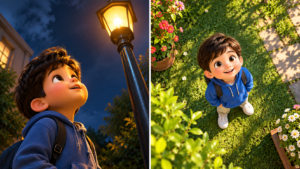
If you omit specific lighting instructions, the AI fills in the blanks based on its training data. For example, if your prompt includes words like “mysterious,” “night,” “forest,” or “dramatic,” the AI automatically assumes you want low-key lighting and deep shadows. Even neutral prompts can render dark if the AI model defaults to a standard studio setup without a strong primary light source. Furthermore, when generating 3D stylized art—such as 3D animated characters or vibrant cartoon environments—the absence of terms like “global illumination” or “ambient light” often results in high-contrast shadows that obscure facial features and clothing details.
The Power of Specific Lighting Keywords
To immediately eliminate dark lighting in your 3D AI prompts, you must explicitly direct the virtual camera and lighting rig. Treating your text prompt as a professional 3D software setup (like Blender or Maya) yields the best results.
1. Global Illumination and Ambient Lighting
In 3D rendering, ambient light ensures that shadows are never completely pitch black. To achieve an evenly lit scene where all details are visible, use these terms:
- Global Illumination: Bounces light across the entire scene, eliminating harsh dark spots.
- Ambient Occlusion: Keeps the depth intact without making the overall image dark.
- High-Key Lighting: A photography term that instructs the AI to use bright, even lighting with minimal shadows.
2. Directional and Natural Light
Specifying where the light comes from forces the AI to brighten the focal point of your image.
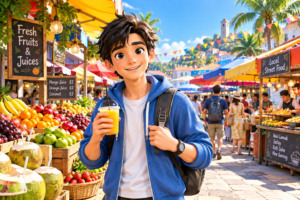
- Sunlight / Golden Hour: Perfect for outdoor scenes, garden settings, or food markets. It adds a warm, bright glow.
- Volumetric Lighting / God Rays: Adds visible light beams that cut through darkness, instantly brightening the atmosphere.
- Soft Softbox Lighting: Excellent for indoor 3D character portraits, providing smooth, bright, and flattering light on faces and clothing.
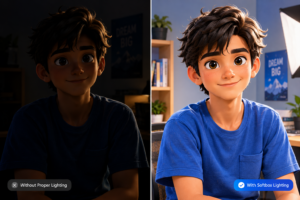
Advanced Prompting Formulas for Vibrant 3D Art
The order of words in your AI prompt significantly impacts the final result. Most AI models prioritize the keywords at the beginning and end of the prompt. To guarantee bright lighting, structure your prompts using a specific formula.
The Formula: [Subject] + [Environment] + [Primary Light Source] + [Secondary Light Source/Fill Light] + [Rendering Engine/Style] + [Color Grading]
Example of a Weak (Dark) Prompt:
A 3D animated boy eating an apple in the kitchen.(Result: The AI might render a dimly lit kitchen with harsh shadows over the boy’s face.)
Example of an Optimized (Bright) Prompt:
A 3D animated boy eating an apple in a vibrant kitchen, highly detailed, flooded with bright morning sunlight through the window, soft fill light on the face, high-key lighting, bright pastel colors, Pixar style, Octane Render, 8k resolution, clear and luminous.(Result: The AI recognizes “bright morning sunlight,” “soft fill light,” and “luminous,” resulting in a perfectly exposed, vibrant image.)
Overcoming Color and Contrast Issues
Sometimes the lighting is technically correct, but the colors themselves are rendering too dark or muddy. This happens when the AI blends the shadows with the character’s clothing or environment.
To fix this, explicitly dictate the color palette in your prompt. Using phrases like “vibrant colors,” “pastel color palette,” or “bright neon accents” forces the AI to prioritize brighter pixels. If you are generating a specific character in an outdoor setting—like a bustling market—add terms like “bright daylight” and “vivid textures” to ensure the materials react properly to the light.
Additionally, avoid terms that accidentally trigger darkness. Words like “cinematic,” “moody,” “epic,” or “hyper-realistic” often introduce deep, heavy shadows. Replace them with “commercial photography,” “bright studio setup,” or “luminous atmosphere.”
Post-Processing: When AI Still Gets It Wrong
Even with the perfect prompt, AI can occasionally generate an image with localized dark spots, perhaps leaving a specific character’s face in the shade while the background is bright. If you have generated an image that is 90% perfect but slightly underexposed, you do not need to re-roll the prompt continuously.
Utilize basic photo editing software like Adobe Lightroom, Photoshop, or free alternatives like Photopea.
- Lift the Shadows: Simply dragging the “Shadows” slider up will reveal hidden details in your 3D characters’ faces and clothing.
- Adjust Exposure: A slight bump in overall exposure can transform a moody AI image into a bright, commercial-ready 3D render.
- Dodge and Burn: Manually paint light onto specific areas (like the eyes or the center of the scene) to draw the viewer’s attention.
Conclusion
Fixing dark lighting in 3D AI image prompts does not require complex technical skills; it simply requires a more descriptive vocabulary. By treating your text prompt as a virtual lighting studio, explicitly stating your primary light sources, utilizing terms like “high-key lighting” or “global illumination,” and avoiding words that imply moodiness, you can consistently generate vibrant, brightly lit 3D artwork. Always remember to specify your environment and the exact time of day to give the AI the contextual clues it needs to illuminate your digital world perfectly.
Frequently Asked Questions
Q1: Why do my 3D character’s faces always render in the dark?
This usually happens because the AI is lighting the scene from behind the character (backlighting). To fix this, add the phrases “front lighting,” “softbox lighting on face,” or “ring light” to your prompt to ensure the face is properly illuminated.
Q2: Does the choice of AI generator affect lighting?
Yes. Midjourney tends to lean toward artistic, cinematic, and slightly darker contrast by default. DALL-E 3 generally produces brighter, flatter lighting. If using Midjourney, you must be much more aggressive with your brightening keywords.
Q3: What is the best keyword for overall bright lighting in 3D styles?
“Global illumination” combined with “high-key lighting” are the two most powerful phrases for 3D styles like Pixar or Disney. They tell the AI to bounce light everywhere, eliminating deep shadows.
Q4: Can I use negative prompts to fix dark images?
Absolutely. If your AI tool supports negative prompting (like Stable Diffusion or Midjourney’s --no parameter), use it to banish darkness. Enter terms like: dark, shadows, underexposed, gloomy, moody, low contrast, poorly lit.
Q5: What does “cinematic lighting” actually mean to AI?
While “cinematic” sounds great, AI usually interprets it as high-contrast, dramatic lighting similar to a movie scene—which often means half the image will be immersed in deep, dark shadows. Avoid it if you want a clean, bright, and fully visible 3D render.
Sources & References:
- Blender Foundation Documentation – Principles of 3D Lighting and Global Illumination.
- Midjourney Official Parameter Guide – Utilizing stylistic keywords and negative prompting for exposure control.
- Adobe Creative Cloud Tutorials – Understanding High-Key vs. Low-Key lighting in digital generation and post-processing.