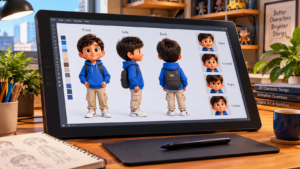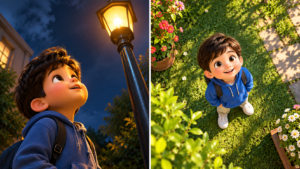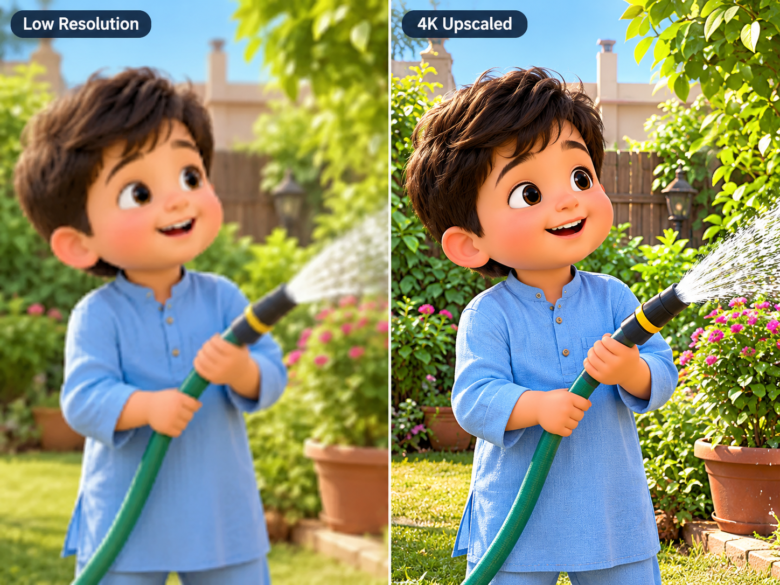
Generative AI tools like Midjourney, DALL-E 3, and Stable Diffusion produce breathtaking visuals, but they fundamentally output low-resolution images—typically capped at 1024×1024 pixels. When you attempt to enlarge these renders for high-quality printing, large digital displays, or professional video production pipelines, the immediate challenge is upscaling the image without destroying its original micro-details. Traditional scaling methods simply stretch pixels, resulting in blurry edges, while basic AI upscalers often overcompensate by smoothing out all the fine details, leaving your artwork looking like melted plastic.
Preserving texture during the upscaling process is a technical art. Whether you are enlarging a highly detailed portrait with visible skin pores or a vibrant 3D animated character featuring intricate fabric weaves, maintaining the integrity of the original generation requires specialized tools and specific workflows. By understanding how neural networks process noise and detail, you can double or quadruple your image resolution while keeping every cobblestone, clothing fiber, and environmental texture perfectly crisp.
The Problem with Standard AI Upscaling
To fix the issue of texture loss, it is vital to understand why it happens. Standard upscaling algorithms, such as bicubic interpolation, work by guessing the color of new pixels based on their neighbors. When early AI upscalers were introduced, they were trained heavily on low-quality JPEG compression. Their primary goal was to remove noise and artifacts.
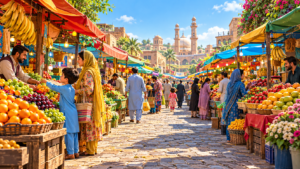
As a result, when you feed a clean, modern AI-generated image into a generic upscaler, the algorithm misinterprets intentional artistic textures—like film grain, canvas bumps, or the subtle fuzz on a 3D character’s sweater—as “noise” that needs to be cleaned. The algorithm aggressively scrubs the image, resulting in the dreaded “wax effect.” For creators designing complex 3D children’s animation scenes, this means a bustling food market loses the rough texture of wooden stalls, or the colorful clothing on a character like Fatima becomes completely flat and featureless, destroying the tactile realism of the 3D render.
Top AI Upscalers for Texture Retention
Not all AI upscalers are built equally. To retain texture, you must utilize models specifically trained for generative art or high-end photography, rather than basic web image enlargers.
1. Magnific AI (The Detail Enhancer)
Magnific AI has revolutionized generative upscaling by acting as an “image re-imaginer.” Unlike standard upscalers, Magnific uses its own diffusion model to hallucinate and inject missing details back into the image. If you upscale an image of a character in a garden, Magnific will actively render individual veins on the leaves and micro-fibers in the character’s shirt. The key to preserving your original texture without the AI changing it too much is keeping the “Creativity” slider low (around 2 to 3) and the “HDR” slider moderate.
2. Topaz Photo AI / Gigapixel
Topaz Labs offers some of the most mathematically precise upscaling available. It is highly recommended for artists who want zero creative liberty taken by the AI. Topaz features specialized models like “Art & CG” and “Low Resolution,” which are highly effective at identifying the sharp geometric edges of 3D animated characters (like ensuring a character’s proportions and distinct clothing colors remain entirely unchanged) while scaling the image up to 600%.
3. Krea.ai (Real-Time Enhancement)
Krea offers an intuitive upscaling feature that allows users to prompt the upscaler. This means you can type specific texture keywords directly into the upscaling engine. By providing a prompt like “highly detailed 3D fabric, crisp textures, vivid lighting,” Krea biases its neural network to preserve those specific physical properties as it multiplies the pixel count.
The Ultimate Method: Stable Diffusion and ControlNet Tile
For absolute professional control, the industry standard workflow is using Stable Diffusion with the ControlNet Tile extension (often run through the Ultimate SD Upscale script in Automatic1111 or ComfyUI). This method does not just enlarge the image; it systematically redraws it at a higher resolution while forcing the AI to strictly adhere to the original composition.
- The Grid System: Ultimate SD Upscale breaks your low-resolution image into a grid of small tiles (e.g., 512×512 squares).
- ControlNet Guidance: The ControlNet Tile model examines each square and tells the AI, “Do not change the underlying structure or colors of this tile, just add more detail to it.”
- Denoising Strength: This is the most critical setting. If your denoising strength is too high (above 0.5), the AI will hallucinate new objects—turning a texture into weird symbols. If it is too low (below 0.1), the image will just look blurry. The sweet spot for preserving the exact original texture while sharpening the image is a denoising strength between 0.25 and 0.35.
By utilizing this workflow, a wide establishing shot of a detailed environment—such as a vibrant garden populated by multiple characters like Doru, Niko, and Mika—can be scaled to 4K or 8K without the distant characters melting into unrecognizable shapes or the environmental foliage turning into green smudges.
The Pre-Upscale Noise Trick
If you are using a basic upscaler or find that even high-end tools are smoothing out your renders too much, there is a professional post-processing trick you can apply before you upscale.
Open your original, low-resolution AI image in a photo editor like Photoshop or Photopea. Add a very slight layer of monochromatic uniform noise (around 1% to 2%). This microscopic layer of grain acts as an anchor for the upscaling algorithm. When the AI attempts to enlarge the image, the noise forces the neural network to recognize micro-contrast across flat surfaces. Instead of smoothing a flat-colored wall or a character’s smooth 3D skin into a plastic gradient, the AI latches onto the noise and generates a highly realistic, porous texture.
Managing Color Shifts During Upscaling
A secondary issue that often accompanies texture loss is color shifting. When upscalers attempt to sharpen edges, they frequently boost contrast, which can unintentionally darken your image or alter the vibrancy of your subject’s clothing.
To prevent this, always work in a lossless format like PNG rather than JPEG before upscaling, as JPEG compression artifacts will be magnified and alter the color profile. If using Stable Diffusion to upscale, ensure your VAE (Variational Autoencoder) is properly loaded, as an absent VAE will result in upscaled images that look washed out and devoid of texture. Finally, if a tool like Magnific or Topaz alters the lighting or darkens the vivid colors of your original prompt, export the upscaled version and layer it over your original low-resolution image in Photoshop. Set the upscaled layer’s blending mode to “Luminosity.” This applies the high-resolution texture and sharpness of the upscale while strictly retaining the exact colors and lighting of your original generation.
Mastering AI upscaling requires moving beyond one-click solutions. By leveraging advanced diffusion models, understanding the critical balance of denoising strength, and preparing your images with micro-contrast techniques, you can enlarge any AI generation to cinematic resolutions. This ensures that every carefully crafted detail—from the bright, distinct colors of a character’s wardrobe to the expansive, intricate lighting of a fully realized 3D environment—remains stunningly sharp and tactually realistic, ready for professional publication or broadcast.
Frequently Asked Questions
Q1: Why do my upscaled AI images look like wax or plastic?
This happens when the upscaling algorithm uses aggressive noise-reduction. The AI misinterprets the fine details and textures of your image as unwanted digital noise and smooths them out. To fix this, use upscalers designed for generative art or lower the noise-reduction settings in your software.
Q2: What is the best free method for upscaling without losing texture?
The best free method is using the Ultimate SD Upscale script within the Automatic1111 Stable Diffusion interface. Paired with ControlNet Tile and a low denoising strength (around 0.3), it injects high-quality detail without altering your original composition or costing money per generation.
Q3: Does the original aspect ratio affect how the upscaler processes texture?
While the aspect ratio itself does not change the algorithm’s function, wider or taller aspect ratios mean certain elements are rendered smaller in the original generation. Upscalers may struggle to identify and texture tiny distant objects compared to a tightly cropped, square portrait.
Q4: Can I upscale an image on a mobile device and keep the texture?
Mobile apps generally use basic interpolation or highly compressed cloud processing, which often results in texture loss. For professional, texture-retaining upscaling, desktop software or dedicated web applications running powerful diffusion models are highly recommended.
Q5: What is the difference between upscaling and enhancing?
Upscaling simply refers to increasing the pixel dimensions and resolution of an image. Enhancing (often used by tools like Magnific AI) actually analyzes the image and hallucinates new pixels and details that were not present in the original prompt, which is why it is so effective at generating hyper-realistic textures.
Sources & References
- Stable Diffusion Art – Comprehensive guides on ControlNet Tile and Ultimate SD Upscale parameters.
- Topaz Labs Documentation – The mathematics of neural network image enlargement and edge preservation.
- Digital Arts Online – Post-processing techniques for generative AI, including noise injection and luminosity blending modes.