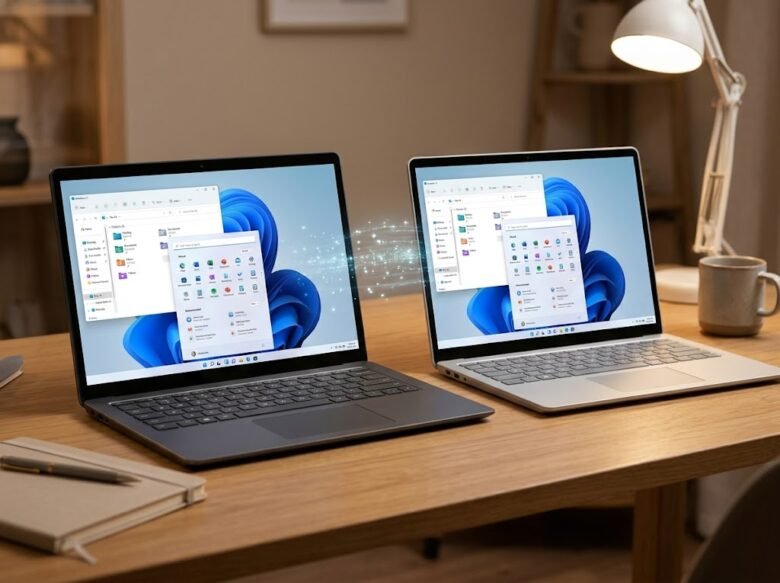
Transferring files between computers used to mean hunting for a USB flash drive or dealing with slow, messy email attachments. Fortunately, if you have two computers running Windows 11 in the same house or office, you can effortlessly share entire folders over your local network.
Whether you are trying to collaborate on a large video editing project, moving a massive photo library to a new laptop, or simply setting up a shared household document folder, Windows 11 offers multiple built-in tools to make this happen.
In this comprehensive guide, we will walk you through the most effective methods to share folders between two Windows 11 PCs, ranging from local network file sharing to wireless transfer tools. We will also cover essential prerequisites, troubleshooting steps, and security best practices to keep your data safe.
Prerequisites Before Sharing Folders
Before diving into the steps, you need to ensure both of your Windows 11 computers are properly configured to talk to each other. Skipping these checks is the most common reason users fail to establish a connection.
- Connect to the Same Network: Both PCs must be connected to the same Wi-Fi router or Ethernet switch. You cannot share local folders if one PC is on your home Wi-Fi and the other is connected to a mobile hotspot.
- Set Network Profile: Windows 11 blocks file sharing on public networks for security reasons. Go to Settings > Network & internet > Wi-Fi (or Ethernet). Click on your network properties and ensure the Network Profile Type is set to Private network.
- Know Your Computer Name: You will need to know the name of the host PC to access it from the second PC. Right-click the Start button, select System, and note down the name next to Device name.
Method 1: Using Local Network Sharing
This is the traditional and most robust method for sharing data between Windows computers. It allows you to create a permanently mapped folder that the second PC can access anytime, provided both computers are powered on.
Step 1: Enable Network Discovery
First, you must tell the host computer that it is allowed to share files over the network.
- Open the Start menu, type Control Panel, and press Enter.
- Navigate to Network and Internet > Network and Sharing Center.
- On the left sidebar, click on Change advanced sharing settings.
- Expand the Private networks section.
- Toggle the switch for Network discovery to On, and check “Set up network connected devices automatically.”
- Toggle the switch for File and printer sharing to On.
- Scroll down to the All networks section and ensure Password protected sharing is turned On.
Step 2: Share the Specific Folder
Now that your network settings are ready, it is time to share your desired folder.
- Open File Explorer and locate the folder you want to share.
- Right-click the folder and select Properties.
- Navigate to the Sharing tab at the top.
- Click on the Advanced Sharing… button.
- Check the box that says Share this folder.
- Click the Permissions button. By default, Windows sets this to read-only. To allow the second PC to add or modify files, check the Allow box next to Full Control.
- Click Apply, then click OK to close all dialog boxes.
Step 3: Access the Shared Folder
Now, move over to the second Windows 11 computer to access the folder you just shared.
- Open File Explorer.
- Click on the address bar at the top, type
\\followed by the host computer’s name (for example,\\Desktop-PC1), and press Enter. - A Windows Security prompt will appear. Enter the username and password of the account on the host computer. Check the “Remember my credentials” box for seamless future access.
- You will now see the shared folder. You can open it, or right-click it and select Map network drive to pin it permanently.
Method 2: Using Nearby Sharing
If setting up network permissions feels too complicated and you only need to send a folder once, Windows 11 has an excellent feature called Nearby Sharing. It uses Bluetooth and Wi-Fi to send files directly between nearby devices.
How to Enable Nearby Sharing
- On both PCs, press Windows Key + i to open Settings.
- Go to System > Nearby sharing.
- Select the option for Everyone nearby (or “My devices only” if logged into the same account).
- On the host PC, open File Explorer. Since Nearby Share works best with single files, right-click your folder and select Compress to ZIP file.
- Right-click the newly created ZIP file and select the Share icon.
- A window will search for nearby devices. Click on the name of your second PC.
- Click Save on the second PC to accept the incoming transfer.
Method 3: Using Microsoft OneDrive
If both of your Windows 11 PCs are signed into the exact same Microsoft Account, you do not need to configure local network sharing.
Windows 11 comes deeply integrated with Microsoft OneDrive. By simply dragging a folder into your OneDrive directory on the first PC, it will automatically sync and appear in the OneDrive folder on your second PC. While this requires an active internet connection and might take longer for massive video files, it is the absolute easiest method for sharing standard documents, spreadsheets, and photos across your own devices.
Troubleshooting Common Folder Sharing Issues
Even when following the steps perfectly, network quirks can occasionally cause headaches. Here are solutions to the most common problems:
Error: Windows cannot access computer This usually means the second PC cannot resolve the host computer’s name. Try using the host PC’s IP address instead. On the host PC, open Command Prompt, type ipconfig, and find the IPv4 Address (e.g., 192.168.1.15). On the second PC, type \\192.168.1.15 into File Explorer.
Error: You do not have permission Even if you gave full control in the Advanced Sharing tab, Windows NTFS file security might be blocking you. Right-click the shared folder on the host PC, go to Properties, and click the Security tab. Ensure that “Everyone” or your specific user is listed with full permissions.
Repeated password prompts If Windows keeps rejecting your password, ensure you format the username correctly by typing the host computer’s name first (e.g., ComputerName\YourUsername). If you use a Microsoft Account to log in, you must use your actual Microsoft Account email password, not your Windows PIN.
Security Best Practices for Network File Sharing
While local network sharing is highly convenient, it is important to practice basic cybersecurity hygiene to ensure your personal data remains private. Never turn off password-protected sharing, as disabling it allows anyone connected to your Wi-Fi network to browse your shared folders without restrictions. Avoid sharing your entire main drive; only share specific folders to limit your exposure. Finally, if you take your laptop to a coffee shop or airport, always ensure your network profile switches back to public, which automatically disables file sharing and hides your computer from other devices.
Sharing folders between two Windows 11 PCs does not require third-party software or messy cables. By utilizing the built-in advanced sharing features, you can establish a high-speed, permanent link between your home or office computers. For quick, one-off transfers, Nearby Sharing offers an elegant wireless experience. Following these steps will streamline your workflow and make file management across multiple PCs effortless.
FAQs
Can I share folders between a Windows 11 PC and a Mac?
Yes. You can use the standard local network sharing method. On the Mac, open Finder, click Go > Connect to Server, and type smb:// followed by the Windows PC’s IP address to access the shared folders.
Do I need an active internet connection to share folders locally?
No. As long as both computers are connected to the same local router or network switch, local network sharing will work flawlessly even without internet access.
Does local network sharing use up my internet data cap?
No. File transfers done via local network sharing route directly through your home Wi-Fi router. The data never leaves your house, so it does not consume your ISP bandwidth.
Why is my file transfer speed so slow?
Transfer speeds depend entirely on your local network hardware. If you are on an older Wi-Fi connection, speeds might crawl. Connecting both PCs to the router via Ethernet cables will drastically improve transfer speeds.