
Have you ever found yourself staring at a folder containing hundreds of vacation photos, digital invoices, or screenshots, all bearing random, meaningless names like IMG_20261024_084321.jpg or Screenshot_2026-10-24.png? Manually renaming files one by one is one of the most tedious, time-consuming tasks in the digital world. If you have 500 files, renaming them individually could easily take hours of exhausting clicking and typing.
For years, Windows users had to rely on sketchy third-party shareware utilities, complicated command-line scripts, or clunky batch-renaming tools filled with annoying advertisements to solve this problem. Fortunately, Microsoft changed the game by reviving PowerToys—a suite of free, open-source productivity utilities designed for power users on Windows 10 and Windows 11.
Within this suite lies a hidden gem called PowerRename. It is arguably the cleanest, safest, and most powerful batch-renaming tool available for Windows today. In this comprehensive guide, we will walk you through everything you need to know about installing PowerToys and mastering PowerRename to organize thousands of files in mere seconds.
What is Microsoft PowerToys and PowerRename?
Microsoft PowerToys is not a brand-new concept; it originally dates back to the Windows 95 era. Microsoft brought it back as an open-source project to give advanced Windows users custom tools to tune and streamline their daily workflow.
PowerRename is a Windows shell extension integrated directly into your context menu. Once enabled, you can select any group of files or folders, right-click, and launch a dedicated window that allows you to:
- Find and replace specific text strings within filenames.
- Use regular expressions (Regex) to target complex file patterns.
- Enumerate files with custom numbering sequences.
- Change file extensions across multiple items simultaneously.
- Instantly preview changes in real-time before applying them.
Because it is officially developed and maintained by Microsoft in collaboration with the open-source community, you don’t have to worry about malware, hidden adware, or system instability.
Step 1: How to Download and Install Microsoft PowerToys
If you don’t already have PowerToys installed on your Windows PC, getting it is quick, safe, and completely free. Follow these simple steps:
- Open the Microsoft Store: Click on your Windows Start menu, type “Microsoft Store,” and open the app. Alternatively, you can visit the official GitHub repository for Microsoft PowerToys.
- Search for PowerToys: Type “Microsoft PowerToys” in the search bar.
- Install the App: Click the Install button. The file size is relatively small, and it will download and install automatically within a couple of minutes.
- Launch PowerToys: Once installed, open the PowerToys app from your Start menu. You will see a control panel featuring various tools like FancyZones, Color Picker, Text Extractor, and of course, PowerRename.
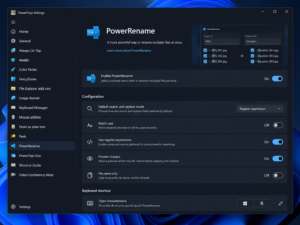
Step 2: How to Launch and Use PowerRename
Once PowerToys is installed, the PowerRename extension is automatically integrated into your right-click context menu. You do not need to open the main PowerToys app every time you want to rename files.
1. Select Your Files
Navigate to the folder containing the files you want to rename. Highlight all the target files by pressing Ctrl + A, or by holding down Shift or Ctrl while clicking specific files.
2. Open PowerRename
Right-click on the highlighted selection.
- On Windows 11, you may need to click “Show more options” first to reveal the classic context menu.
- Look for and click on PowerRename. A clean, dedicated application window will immediately pop up.
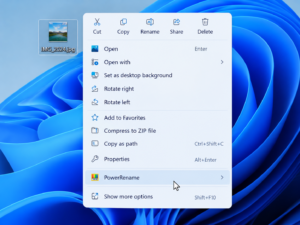
Step 3: Mastering the PowerRename Interface (Core Features)
The PowerRename window is divided into two main sections: the input panel on the left and a live preview panel on the right. Whatever changes you type on the left instantly reflect on the right before you commit to them. Let’s look at the core features in detail:
Feature A: Simple Find and Replace
This is the most common use case. Suppose you have 50 files named Project_Draft_v1.docx, Project_Draft_v2.docx, etc., and you want to change “Draft” to “Final”.
- In the Search for field, type:
Draft - In the Replace with field, type:
Final - Look at the preview panel on the right. You will instantly see your files update to
Project_Final_v1.docx. - Click the Apply button at the bottom.
Feature B: Removing Unwanted Words or Characters
If your downloaded files or camera pictures contain unwanted promotional text (e.g., -downloaded-from-website), you can wipe them out instantly.
- In the Search for field, type the exact text string you want to remove.
- Leave the Replace with field completely blank.
- PowerRename will automatically strip that text string out of every selected file name.
Feature C: Case Modification
PowerRename includes handy checkboxes that let you change text casing effortlessly:
- Match case: Ensures the search is case-sensitive.
- Use regular expressions: For advanced users.
- Uppercase / Lowercase / Title case: You can toggle these options to format all your filenames uniformly (e.g., converting everything to lowercase or capitalizing the first letter of every word).
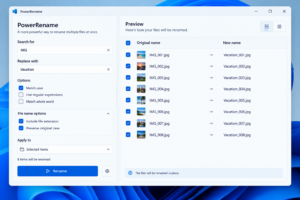
Step 4: Advanced PowerRename Techniques
If you want to take your file organization to an expert level, PowerToys offers powerful modifiers that go beyond basic text replacement.
Using Regular Expressions (Regex)
For tech-savvy users and developers, checking the “Use regular expressions” box unlocks incredible flexibility. For example, if you want to remove all numbers from a batch of filenames:
- Search for:
[0-9] - Replace with:
[Leave Blank]This instantly purges all digits from your selected files while leaving the alphabetical characters intact.
Adding Enumeration (Auto-Numbering)
When renaming large batches of photos or documents, you often want them numbered sequentially (e.g., Vacation_001.jpg, Vacation_002.jpg). While PowerRename doesn’t have a standalone numbering button, you can achieve this by combining your search parameters or using specific naming conventions. However, for basic bulk sequencing, keeping your selection sorted before launching the tool ensures your original order remains intact.
Best Practices and Common Mistakes to Avoid
While PowerRename is exceptionally safe and features an “Undo” capability immediately after execution, it pays to follow best practices to protect your data:
- Always Test with a Small Batch First: If you are about to rename 2,000 crucial documents, don’t select all of them on your first try. Test the tool on 3 or 4 dummy files to make sure your search criteria and replacement strings behave exactly as expected.
- Do Not Rename System Files: Never use batch-renaming tools on Windows system directories, program files, or application folders. PowerRename is meant for personal media, documents, and assets. Changing system filenames can break applications.
- Utilize the Live Preview: Never click the “Apply” button without carefully scanning the right-hand preview panel. If something looks off in the preview, your files will look off after you apply it.
Conclusion
Managing digital clutter doesn’t have to be a painful chore. Microsoft PowerToys has transformed what used to require complex scripts or paid third-party utilities into a seamless, built-in Windows feature. With PowerRename, you can clean up messy filenames, standardize your document library, and organize thousands of files in less than a minute. Download PowerToys today, give PowerRename a try, and reclaim hours of your valuable time!
Frequently Asked Questions
Q1: Is Microsoft PowerToys PowerRename completely free?
Yes! Microsoft PowerToys is an official, 100% free, open-source project developed by Microsoft and the developer community. There are no hidden fees, subscriptions, or advertisements.
Q2: Can I undo changes if I make a mistake in PowerRename?
Yes, immediately after applying a rename operation, PowerToys provides an undo notification option. However, once you close the window or perform other actions, the undo state may be cleared, which is why checking the live preview beforehand is always recommended.
Q3: Does PowerRename work on file extensions as well?
Yes, by default, PowerRename targets filenames, but you can configure settings to include or exclude file extensions if you need to change .jpeg to .jpg across multiple files simultaneously.
Q4: Can I use PowerRename on subfolders as well?
Yes, PowerRename includes an option to enumerate items inside subfolders, making it easy to clean up nested directory structures without having to open every single folder manually.
Q5: Is PowerToys available for Mac or older Windows versions?
No, Microsoft PowerToys is built specifically for modern Windows 10 and Windows 11 operating systems. It is not officially supported on macOS or legacy versions like Windows 7 or 8.
Sources & References:
- Microsoft Official Documentation: Microsoft Learn guide for PowerToys PowerRename utility.
- GitHub Repository: Official open-source Microsoft PowerToys project codebase and release notes.