Upgrading to a Solid State Drive (SSD) or buying a new Windows 11 PC equipped with one is a massive leap in performance. Your computer boots up in seconds, apps launch instantly, and file transfers happen in the blink of an eye. However, out of the box, most Windows 11 computers come with a single massive “C: Drive” where everything is stored—your operating system, your precious family photos, your heavy games, and your essential work documents.
Keeping everything in one single digital bucket is rarely a good idea. What happens if your Windows 11 operating system crashes and needs to be formatted? You risk losing all your personal files. This is exactly where partitioning comes in.
Partitioning an SSD means logically dividing your physical drive into multiple independent sections (like the C: drive, D: drive, and E: drive). Even though you only have one physical SSD installed in your laptop or desktop, Windows 11 will treat these partitions as completely separate hard drives. In this comprehensive guide, we will walk you through the safest, most efficient ways to partition an SSD in Windows 11 without losing any of your data.
Why Should You Partition Your SSD?
Before diving into the “how-to,” it is crucial to understand the “why.” Here are the top reasons why partitioning your Windows 11 SSD is highly recommended by IT professionals:
1. Enhanced Data Safety and System Recovery
If a nasty malware infection corrupts your Windows 11 OS, or a buggy update forces you to reinstall the operating system, you will have to wipe your C: drive. If your personal files (documents, videos, photos) are stored on a separate partition (e.g., D: drive), they will remain completely untouched and safe during the OS reinstallation.
2. Better Organization
A single drive can quickly become a cluttered mess. By partitioning, you can dedicate the C: drive strictly for Windows 11 and software installations. You can create a D: drive for your personal media and an E: drive dedicated solely to heavy PC games. This makes finding files faster and keeps your digital life organized.
3. Dual-Booting Capabilities
If you are a developer or a tech enthusiast who wants to run two operating systems on the same computer—for example, Windows 11 and a Linux distribution like Ubuntu—you absolutely must have separate partitions.
4. Efficient Backups
Backing up a massive 1TB drive takes hours. If you partition your drive, you can easily choose to back up only the partition that holds your critical work documents, saving you immense amounts of time and cloud storage space.

Crucial Prerequisites: Do This Before You Begin
Partitioning is generally a very safe process in Windows 11, especially when using built-in Microsoft tools. However, you are still altering the fundamental file structure of your storage drive. To ensure zero data loss, follow these safety steps:
- Backup Your Data: Use an external hard drive, USB flash drive, or a cloud storage service like Google Drive or OneDrive to back up your most important files.
- Plug in Your Laptop: If you are using a laptop, ensure it is connected to a reliable power source. If your laptop battery dies in the middle of a partition resize, it can severely corrupt your file system.
- Free Up Space: Ensure your SSD has enough free space to be split. Empty your recycle bin, clear temporary files, and uninstall programs you no longer use.
Method 1: Partition an SSD Using Windows 11 Disk Management (Recommended)
The most reliable and traditional way to partition a drive is by using the built-in “Disk Management” tool. You do not need to download any third-party software for this.
Step 1: Open the Disk Management Tool Right-click on the Start Button (the Windows logo) on your taskbar. From the Power User menu that appears, select Disk Management. Alternatively, you can press Windows Key + R, type diskmgmt.msc, and hit Enter.
Step 2: Locate Your SSD and Shrink the Volume Once Disk Management opens, you will see a list of all drives connected to your PC.
- Look for your primary partition, which is usually labeled as (C:).
- Right-click on the C: drive and select Shrink Volume from the context menu.
- Windows will take a few moments to query the volume and calculate how much free space can be safely separated.
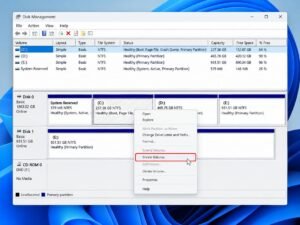
Step 3: Allocate the Size of the New Partition A new dialog box will appear. Here, you need to enter the amount of space to shrink in Megabytes (MB).
- Note on sizing: 1 Gigabyte (GB) is equal to 1024 Megabytes (MB).
- If you want to create a new 100 GB partition, you need to type 102400 in the text box.
- Enter your desired size and click the Shrink button.
Step 4: Create a New Simple Volume Once the shrinking process is complete, you will notice a new block of space in the Disk Management window labeled “Unallocated” with a black bar on top of it.
- Right-click on this Unallocated space and select New Simple Volume.
- The New Simple Volume Wizard will pop up. Click Next.
- Confirm the size of the new partition (leave it at the maximum if you want to use all the unallocated space) and click Next.
- Assign a drive letter. Windows will suggest one automatically (like D or E). You can change it if you prefer. Click Next.
Step 5: Format the Partition In the next window, choose how to format the drive.
- File System: Set this to NTFS (the standard and most secure file system for Windows).
- Volume Label: This is the name of your new drive. You can name it “Personal Files”, “Games”, or “Media”.
- Ensure the “Perform a quick format” box is checked.
- Click Next, then click Finish.
Congratulations! You will now see your brand-new partition appear in “This PC,” ready to store your files.
Method 2: Partition Using the Windows 11 Settings App
Windows 11 introduced a modernized, highly user-friendly interface for managing storage directly within the Settings app. If Disk Management looks too technical for you, this is the perfect alternative.
- Open the Settings app by pressing
Windows Key + I. - Navigate to System > Storage.
- Scroll down and click on Advanced storage settings to expand the menu.
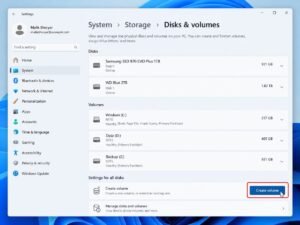
- Click on Disks & volumes.
- You will see a modern visual representation of your SSD. Click on your primary drive (C:) and select Properties.
- Click the Change size button. A prompt will appear allowing you to reduce the size of the current partition. Enter the new smaller size for your C: drive and confirm.
- Go back to the Disks & volumes screen. You will now see unallocated space.
- Click on the unallocated space and select Create volume. Follow the on-screen prompts to assign a letter and format it as NTFS.
Common Mistakes to Avoid When Partitioning
While the built-in Windows 11 tools are designed to protect you from catastrophic errors, you should still keep the following best practices in mind:
- Never Touch System/Recovery Partitions: In Disk Management, you will see small partitions (usually around 100MB to 500MB) labeled as “EFI System Partition” or “Recovery Partition”. Do not delete, shrink, or format these. They are critical for your PC to boot up and repair itself.
- Don’t Starve the C: Drive: Windows 11 needs breathing room to download updates, expand virtual memory, and install software. Never shrink your C: drive to the absolute limit. Always leave at least 40GB to 50GB of entirely free space on your C: drive to ensure optimal system performance.
- Don’t Create Too Many Partitions: While partitioning is great, slicing your SSD into 6 or 7 tiny partitions will actually make file management harder and lead to wasted space. Sticking to 2 or 3 partitions (OS, Data, and maybe Games) is the sweet spot for most users.
Conclusion
Partitioning your SSD in Windows 11 is an incredibly smart move for anyone looking to secure their data and keep their digital workspace organized. By separating your operating system from your personal files, you create a fail-safe environment where your photos and documents are shielded from unexpected OS crashes. Whether you choose the traditional Disk Management route or the modern Settings app method, the process is straightforward, free, and completely safe as long as you follow the steps outlined above. Take control of your storage today, and enjoy a cleaner, safer Windows 11 experience!
Frequently Asked Questions
Q1: Does partitioning an SSD reduce its lifespan or slow it down?
No. Partitioning is a logical software process, not a physical one. It simply tells the operating system how to categorize the storage blocks. It does not negatively impact the read/write speeds, performance, or overall lifespan of your Solid State Drive.
Q2: Will partitioning erase my existing files?
If you use the “Shrink Volume” method detailed in this guide, your existing files on the C: drive will not be erased. The system only takes the empty, unused space and turns it into a new partition. However, formatting an existing partition will erase data, which is why we only format the newly created “Unallocated” space.
Q3: Can I merge the partitions back together later?
Yes, absolutely. If you change your mind, you can move your files off the secondary partition, delete that partition in Disk Management (which turns it back into unallocated space), and then right-click your C: drive and select “Extend Volume” to merge the space back together.
Q4: Why is the “Shrink Volume” option greyed out for me?
This usually happens if you do not have enough free space, or if unmovable system files (like the Pagefile or Hibernation file) are sitting at the end of the drive. Disabling hibernation temporarily and running a disk defragmentation/optimization can usually fix this issue.
Q5: Do I need third-party software to partition my SSD?
For basic shrinking and creating partitions, the built-in Windows 11 tools are more than enough. However, third-party software like EaseUS Partition Master or MiniTool Partition Wizard can be helpful for advanced tasks, such as moving the OS to a different drive or converting partition styles (MBR to GPT).
Sources & References:
- Microsoft Official Support: Disk Management documentation for Windows systems.
- TechRepublic & Windows Central: Best practices for SSD optimization and storage management in Windows 11.