Have you ever downloaded a software program, a game installer, or an executable file from the internet, but hesitated to run it because you weren’t sure if it contained malware, spyware, or adware? We have all been there. Traditionally, testing suspicious files meant setting up a complex Virtual Machine (VM) using software like VirtualBox or VMware, which requires downloading massive ISO files, allocating hard drive space, and configuring network settings.
Fortunately, Microsoft solved this problem by introducing a built-in, lightweight virtualization feature called Windows Sandbox.
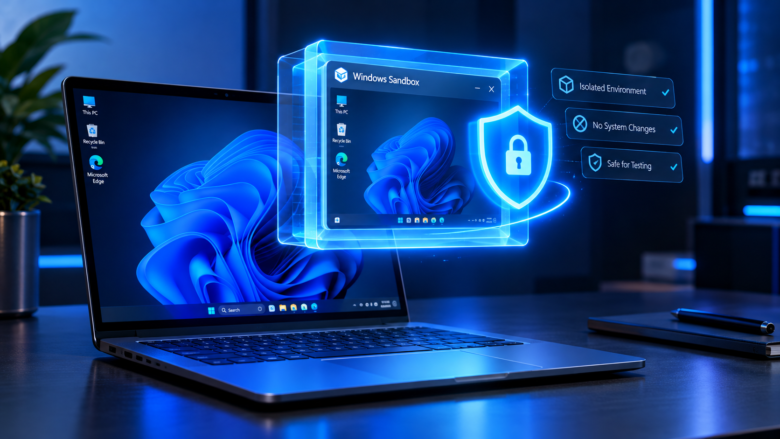
Windows Sandbox provides a temporary, isolated desktop environment where you can safely run untrusted applications without the fear of harming your main operating system. Once you close the sandbox, everything inside it is permanently deleted, leaving your computer completely clean. In this comprehensive guide, we will walk you through everything you need to know to enable, configure, and use Windows Sandbox safely on Windows 11.
What is Windows Sandbox and How Does It Work?
Windows Sandbox is essentially a mini, disposable version of Windows 11 running right inside your existing operating system. It leverages Microsoft’s hypervisor technology to create a hardware-isolated environment.
Here is what makes Windows Sandbox unique and powerful:
- Disposable: Whatever you do in the sandbox stays in the sandbox. When you close the application window, all files, apps, cookies, and registry changes are permanently wiped out.
- Integrated: Unlike traditional virtual machines that require a separate OS image, Windows Sandbox uses a feature called “dynamic base image.” It uses the exact same version of Windows that is currently installed on your host machine, making it lightning-fast to launch.
- Secure: Because it runs in an isolated container managed by the Windows hypervisor, malware or malicious scripts executed inside the sandbox cannot escape to infect your host file system.
- Resource Efficient: It doesn’t hog your system resources like traditional VMs because it shares the host operating system’s kernel and memory pages intelligently.
System Requirements for Windows Sandbox
Before you can enable Windows Sandbox, you must ensure that your computer meets specific hardware and software criteria. Windows Sandbox is available on Windows 11 Pro, Enterprise, and Education editions. (Note: It is generally not included in Windows 11 Home edition out of the box).
Ensure your system meets these prerequisites:
- Operating System: Windows 11 Pro, Enterprise, or Education (64-bit).
- Virtualization: Hardware virtualization must be enabled in your computer’s BIOS/UEFI settings (Intel VT-x or AMD-V).
- RAM: At least 4 GB of RAM (8 GB or more is highly recommended for smooth multitasking).
- Storage Space: At least 1 GB of free disk space (an SSD is strongly recommended for fast boot times).
- CPU Cores: At least 2 CPU cores (4 or more recommended).
Step 1: Enable Hardware Virtualization in BIOS (If Disabled)
If you have never used a virtual machine on your PC, hardware virtualization might be disabled in your motherboard’s BIOS settings.
- Restart your computer and repeatedly press your BIOS entry key (usually
F2,F12,Del, orEscdepending on your motherboard manufacturer). - Look for a setting named Intel Virtualization Technology (Intel VT-x), SVM Mode (AMD), or simply Virtualization.
- Enable this setting, save your changes (
F10), and restart your PC into Windows 11.
Step 2: How to Enable Windows Sandbox in Windows 11
Once virtualization is active, turning on Windows Sandbox takes just a few clicks through the Control Panel.
- Click on the Windows Search bar, type Turn Windows features on or off, and press Enter.
- A small window will appear containing a list of advanced Windows components. Scroll down until you find Windows Sandbox.
- Click the checkbox next to Windows Sandbox.
- Click OK. Windows will search for required files and apply the changes.
- Once the process is complete, click Restart Now to reboot your computer and activate the feature.
Step 3: How to Use Windows Sandbox
Now that your system has rebooted and Windows Sandbox is enabled, launching and using it is remarkably simple.
Launching the Sandbox
- Open the Start Menu, type Windows Sandbox, and click on the application icon.
- A User Account Control (UAC) prompt will appear asking for administrator permission. Click Yes.
- Within a few seconds, a window will pop up displaying a clean, fresh desktop that looks identical to a brand-new installation of Windows 11.
Moving Files In and Out of the Sandbox
You cannot drag and drop files directly from your host desktop into the sandbox window due to security isolation. However, transferring files is easy:
- Locate the file on your main PC (e.g., a setup
.exefile or a suspicious document). - Copy the file (
Ctrl + C). - Click inside the Windows Sandbox window and Paste the file (
Ctrl + V). - Once inside the sandbox, you can run, test, or inspect the file safely.
Warning: If you want to extract data generated inside the sandbox back to your main PC, you must be careful, as moving infected files out will compromise your host system. Only move verified safe files out.
Advanced Usage: Customizing Windows Sandbox with Configuration Files
Advanced users can create custom configuration files using simple XML scripts saved with a .wsb extension. These configuration files allow you to customize how the sandbox behaves upon startup.
For example, you can automatically map a folder from your host computer into the sandbox, enable/disable vGPU (virtualized graphics), or run a startup script.
Here is a basic example of a .wsb configuration file:
<Configuration>
  <Networking>Default</Networking>
  <MappedFolders>
    <MappedFolder>
      <HostFolder>C:\Users\YourUsername\Downloads\TestFolder</HostFolder>
      <SandboxFolder>C:\SandboxShared</SandboxFolder>
      <ReadOnly>true</ReadOnly>
    </MappedFolder>
  </MappedFolders>
</Configuration>
How to use a .wsb file:
- Open Notepad and paste the XML code above (adjusting the
HostFolderpath to your actual folder). - Save the file as
mysandbox.wsb(make sure the file type is set to “All Files (.)”, not.txt). - Double-click the
.wsbfile, and it will launch Windows Sandbox with your shared folder pre-mapped and set to Read-Only mode for safety.
Best Practices for Using Windows Sandbox Safely
While Windows Sandbox is an extraordinary security tool, following these best practices ensures maximum safety:
- Don’t Mistake Sandbox for a VPN: Windows Sandbox isolates your local file system and applications, but it does not hide your IP address or encrypt your web traffic. If you download malicious scripts that connect to the internet, they still use your real internet connection.
- Close the Sandbox When Finished: Leaving the sandbox running consumes system RAM. Always close the window when you are done testing to free up system resources.
- Keep Windows Updated: Microsoft frequently releases security patches for the Windows hypervisor layer. Keep your Windows 11 installation updated to patch any potential vulnerabilities.
Conclusion
Windows Sandbox is a game-changing utility built right into Windows 11 Pro and Enterprise editions. It eliminates the need for bulky third-party virtual machine software when you just need a quick, disposable environment to test an unfamiliar application, open a suspicious email attachment, or browse risky websites. By following this guide, you can easily enable and utilize Windows Sandbox to keep your primary operating system secure, clean, and malware-free.
Frequently Asked Questions
Q1: Is Windows Sandbox available in Windows 11 Home?
No, Windows Sandbox officially requires Windows 11 Pro, Enterprise, or Education editions. However, advanced users on Windows Home sometimes use custom scripts, though it is not officially supported by Microsoft.
Q2: Will my files inside the sandbox be saved if I restart the computer?
No. Everything inside Windows Sandbox is completely temporary. The moment you close the application window, all data, configurations, and downloaded files are permanently deleted.
Q3: Can malware escape from Windows Sandbox to my main PC?
Windows Sandbox uses strict hardware-based virtualization via the hypervisor. While zero-day hypervisor exploits are theoretically possible in extreme cybersecurity scenarios, for 99.9% of users, it provides complete isolation and safety against normal malware.
Q4: Does Windows Sandbox slow down my computer?
When closed, Windows Sandbox uses zero CPU and RAM resources. When running, it consumes system resources based on what you are doing inside it, but because it shares the host OS kernel, it is significantly lighter than running a full virtual machine.
Q5: Can I install heavy games inside Windows Sandbox?
While you can run basic apps and utilities, Windows Sandbox has limited GPU virtualization support. It is not designed for heavy 3D gaming or resource-intensive video editing software.
Sources & References
- Microsoft Learn Documentation: Official guidelines on Windows Sandbox architecture and configuration.
- Windows IT Pro Center: Best practices for virtualization and security features in Windows 11.