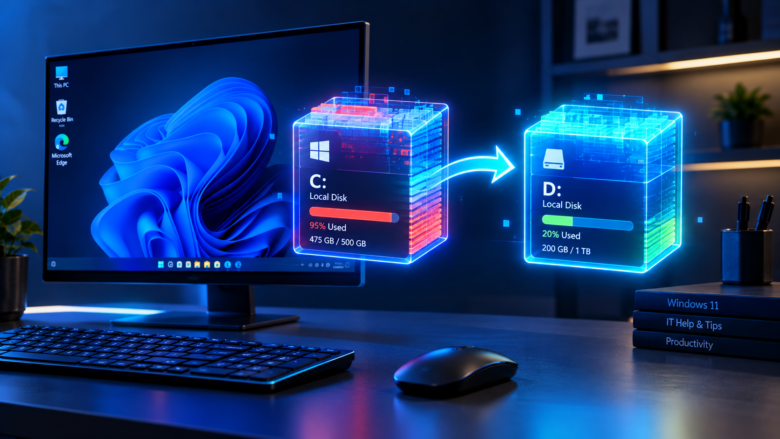
Have you ever opened File Explorer only to see that your primary C: drive is glowing in a warning shade of red, with barely a few gigabytes of free space left? If you are a gamer, a video editor, or a power user, this is a very familiar sight. Over time, Windows operating systems, heavy software suites, and modern applications silently devour your storage space.
When your C: drive gets full, your computer’s overall performance takes a massive hit. Windows needs free breathing room (virtual memory, cache, and update space) to operate smoothly. Many users think their only option is to completely uninstall their favorite applications and reinstall them on a secondary drive. Fortunately, you don’t have to go through that hassle. Windows provides built-in mechanisms, and there are clever workarounds, to move installed apps to another drive safely without breaking your files or registry keys. In this comprehensive guide, we will walk you through every proven method to move your installed apps and free up your precious drive space.
Why You Should Move Apps Off Your Main C: Drive
Before jumping into the step-by-step methods, it helps to understand why managing your storage distribution matters:
- Boosted System Performance: Solid State Drives (SSDs) slow down drastically when they are filled to 95% or 100% capacity. Keeping your C: drive at least 15% to 20% empty ensures snappy boot times and fluid multitasking.
- Easier Backups and OS Recovery: If your operating system crashes and requires a fresh installation, having your heavy software and games on a separate partition (like a D: or E: drive) saves you from hours of re-downloading and reconfiguring.
- Extended SSD Lifespan: Keeping heavy read/write caching distributed across different partitions or secondary drives helps manage wear and tear more efficiently.
Method 1: Move Apps Using Windows 11/10 Settings (The Easiest & Safest Way)
Modern versions of Windows have a built-in feature that allows you to move certain apps to another drive with just a few clicks. However, there is a catch: this method primarily works for apps downloaded from the Microsoft Store, along with select modern desktop applications. Traditional .exe programs installed from random websites may not show up here.
Step-by-Step Instructions:
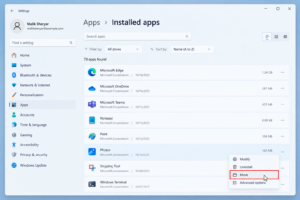
- Open the Settings app by pressing
Windows Key + Ion your keyboard. - In the left-hand menu, click on Apps, and then select Installed apps (or Apps & features in older Windows versions).
- Scroll through the list or use the search bar to find the application you want to move.
- Click on the three dots (
...) menu button next to the app name. - If the app supports relocation, you will see a Move button. Click it.
- A drop-down menu will appear asking you to choose the target drive (e.g., Drive D:). Select your desired drive and click Move.
Windows will automatically transfer the core files of the application to the new location without deleting your user data or settings.
Method 2: Moving PC Games via Steam, Epic Games, and Other Launchers
If you are trying to free up space on your C: drive, chances are that heavy video games are taking up the lion’s share of your storage. Fortunately, major game distribution platforms make moving installed games remarkably easy.
How to Move Steam Games:
- Open the Steam client and click on Steam in the top-left corner, then select Settings.
- Navigate to the Storage tab on the left menu.
- Click the dropdown menu at the top and select Add Drive to choose a folder on your secondary hard drive or SSD.
- Once your new drive is added, check the boxes next to the games you want to move.
- Click the Move button at the bottom. Steam will automatically transfer all game files to the new location without needing to re-download anything.
How to Move Epic Games Launcher Games:
Epic Games does not have a direct “move” button, but you can move games using a clever workaround:
- Go to your secondary drive and create a new folder (e.g.,
D:\Games\EpicGames). - Open your current Epic Games installation folder (usually
C:\Program Files\Epic Games\Fortnite) and cut the game folder. - Paste it into your new folder on the D: drive.
- Open the Epic Games Launcher, go to your Library, and click Install on the game you just moved. Point the installation path to the new D: drive folder.
- The launcher will verify existing files instead of downloading the whole game from scratch.
Method 3: How to Move Traditional Desktop Apps (.EXE Programs)
If you have traditional desktop applications (like Adobe Photoshop, older utilities, or custom software) that do not show up in the Windows Settings app and lack an internal “change directory” option, moving them can be tricky.
Warning: Simply dragging and dropping a program folder from C:\Program Files to D:\ will break the application. Windows registry keys and shortcuts will still look for the program in its original C: drive location, resulting in crash errors.
To safely move traditional desktop apps, you have two reliable options:
Option A: The Clean Reinstallation (Safest)
The absolute safest way to move a traditional desktop app is to:
- Uninstall the program completely from your C: drive using Control Panel > Programs and Features.
- Run the original installer setup file again.
- During the installation wizard, look for an Advanced, Custom, or Installation Directory option.
- Change the installation path from
C:\Program Files\...to your secondary drive (e.g.,D:\Programs\...).
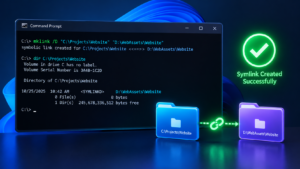
Option B: Using Symbolic Links (For Advanced Users)
If reinstalling is not an option, advanced users utilize Symbolic Links (Symlinks) via Command Prompt:
- Copy the application folder from the C: drive to your desired location on the D: drive.
- Completely delete or rename the original folder on the C: drive.
- Open Command Prompt as Administrator.
- Use the
mklinkcommand to create a directory junction that tricks Windows into thinking the files are still in the original location while redirecting read/write requests to the new drive. (Note: If done incorrectly, this can cause system instability, so proceed with caution or stick to Option A).
Method 4: Using Third-Party App Transfer Software
If you want a hassle-free, automated way to move traditional desktop programs and large data folders without dealing with complex command lines or reinstallations, dedicated third-party software is your best bet.
Popular, trusted tools like EaseUS Todo PCTrans or MiniTool Partition Wizard feature built-in “App Migration” modules.
How They Work:
- Download and install a reputable PC transfer utility on your computer.
- Open the App Migration or Application Transfer feature.
- The software will scan your C: drive and list all installed applications along with their sizes.
- Select the apps you want to move and choose your destination drive (D: or E:).
- Click Transfer. The software automatically moves the files and updates the Windows registry entries in the background so the apps continue to work seamlessly.
Best Practices to Avoid Storage Clutter in the Future
Once you have successfully cleared up your C: drive, follow these habits to keep your storage organized moving forward:
- Change Default Installation Paths: Open Windows Settings > System > Storage > “Where new content is saved” and change the default drive for new apps, documents, and music to your secondary drive.
- Regularly Clean Temporary Files: Use the built-in Windows Disk Cleanup or Storage Sense tool monthly to wipe out update caches, temporary files, and system logs.
- Keep Personal Files Off C: Make it a rule to save your large photo libraries, video projects, and documents directly to your D: drive or a cloud backup service.
Conclusion
Running out of storage space on your primary Windows drive is frustrating, but you don’t have to live with a sluggish computer or constantly delete your favorite tools. Whether you are using the built-in Windows Settings app for Microsoft Store apps, utilizing built-in platform features for Steam games, or opting for a clean reinstallation or third-party transfer tool for heavy desktop software, moving your apps to another drive is entirely achievable. By following this guide, you can reclaim your C: drive space, boost your PC’s performance, and maintain a clean, organized digital workspace.
Frequently Asked Questions
Q1: Will moving installed apps delete my personal settings or game saves?
If you use official methods (like Windows Settings, Steam library migration, or professional transfer software), your personal settings, login credentials, and game saves will remain intact. However, it is always a smart precaution to back up important app data before making major storage changes.
Q2: Can I move apps to an external hard drive or USB flash drive?
Yes, you technically can move apps to an external drive if it is formatted to NTFS. However, it is strongly discouraged. External drives connected via USB are much slower than internal SSDs/HDDs, which will cause apps to lag, stutter, or fail to load if the cable disconnects.
Q3: Why doesn’t the “Move” button appear for all my apps in Windows Settings?
The “Move” option in Windows Settings is exclusively supported by apps downloaded from the Microsoft Store. Traditional desktop programs (.exe files downloaded from the web) do not support this feature because of how their registry paths are structured.
Q4: Will moving games to a secondary HDD make them load slower?
If your secondary drive is a traditional Mechanical Hard Drive (HDD), games with massive open worlds and heavy texture loading might experience slightly longer loading screens compared to running them on an NVMe SSD. If possible, always aim to use a secondary SSD for gaming.
Q5: What happens if I just cut and paste a program folder to another drive?
Simply cutting and pasting a traditional desktop app folder will break the application. Windows registry keys and desktop shortcuts will still look for the files in the original C: drive path, resulting in missing file errors and broken software.
Sources & References
- Microsoft Support: Official guidelines on managing storage and apps in Windows 11 and Windows 10.
- Valve Developer Community: Steam library management and game installation directory documentation.