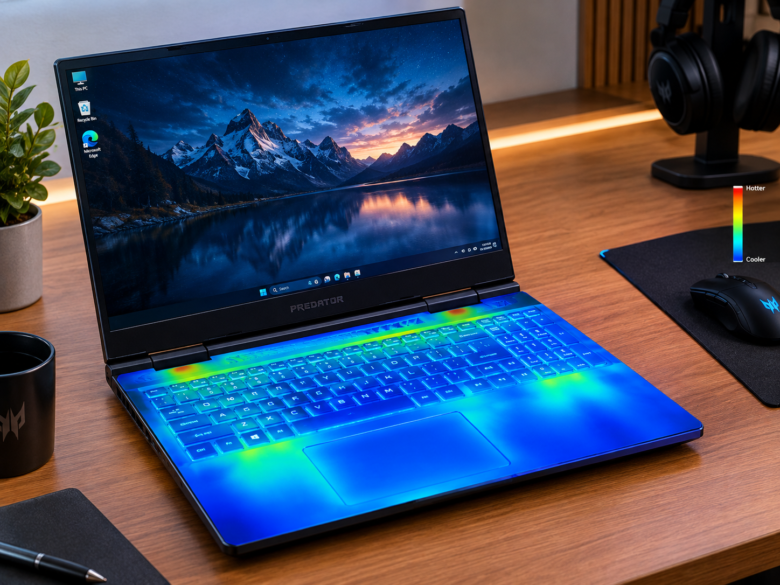
Is your laptop fan sounding like a jet engine, or does your desktop unexpectedly shut down during heavy tasks? Overheating is one of the most common hardware killers for modern computers. While dust buildup, old thermal paste, and blocked cooling vents are primary hardware culprits, your software configuration plays a massive role in how much heat your system generates.
Windows includes robust power management features that dictate how aggressively your processor (CPU) and graphics card (GPU) consume electricity. When configured incorrectly, your operating system keeps components running at maximum voltage even during light tasks, triggering excessive thermal output.
In this comprehensive guide, we will explore the best Windows power plan settings to stop overheating, lower your system temperatures, and maintain optimal performance without requiring expensive hardware upgrades.
Why Your Windows Power Plan Affects System Heat
Electricity translates directly into heat. Every time electrical current flows through your CPU’s transistors, thermal energy is produced as a byproduct.
By default, Windows manages this through Power Plans or Power Modes.
- High Performance Plans: These configurations instruct your hardware to stay at maximum clock speed and voltage constantly so apps launch instantly. However, this creates continuous, unnecessary heat.
- Balanced/Efficiency Plans: These dynamically scale your CPU frequency up or down based on your workload, letting components rest and cool down when you are just browsing the web or typing documents.
Optimizing these settings allows you to cap unnecessary power delivery, dramatically dropping idle and load temperatures.
Method 1: Switch from “High Performance” to “Balanced” Mode
If your computer is running hot even when you aren’t doing much, check your active power scheme first.
- Press the
Windows Key + Rto open the Run dialog box. - Type
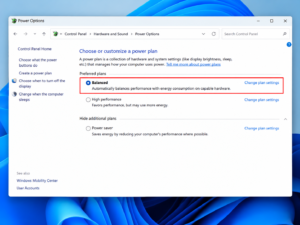
controland press Enter to open the classic Control Panel. - Set the “View by” option in the top right to Large icons or Small icons, then click on Power Options.
- Look at your available plans. If High Performance or Ultimate Performance is selected, switch it to Balanced (recommended).
The Balanced plan allows your processor to step down its frequency when idle, significantly cutting down unwanted thermal generation.
Method 2: Fine-Tune Processor Power Management (The 99% Trick)
Even on the Balanced plan, modern processors love to use “Turbo Boost” technology, spiking frequencies and voltage momentarily, which causes sharp temperature jumps. You can control this behavior precisely via advanced power settings.
- Open Power Options via the Control Panel (as shown in Method 1).
- Next to your active power plan, click Change plan settings.
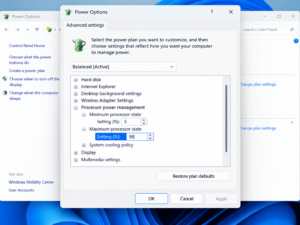
- Click on the link that says Change advanced power settings. A small popup window will appear.
- Scroll down the list and expand Processor power management.
- Expand Maximum processor state.
- Change the settings for On battery and Plugged in from 100% to 99%.
- Click Apply and then OK.
Why does changing 100% to 99% help?
Setting the maximum processor state to 99% tells Windows to disable aggressive CPU turbo-boosting while keeping nearly all of your base performance intact. Because turbo-boosting pushes voltages past normal thresholds to achieve peak speeds (generating massive amounts of heat), disabling it often drops operating temperatures by 5°C to 10°C instantly.
Method 3: Adjust Windows 11 Modern Standby Power Modes
If you are using Windows 11, Microsoft replaced or supplemented traditional control panel schemes with a modern slider under the main Settings app.
- Press
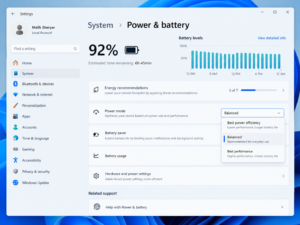
Windows Key + Ito open the Settings app. - Navigate to System > Power & battery.
- Locate Power mode.
- Change the dropdown selection from Best performance to Balanced or Best power efficiency.
Selecting Best power efficiency limits aggressive background apps from constantly waking up your CPU, helping your machine stay cool when resting on your desk or lap.
Additional Quick Wins to Keep Your PC Cool
Power plans are powerful software fixes, but they work best when paired with basic physical thermal maintenance:
- Elevate Your Laptop: Never use a laptop on a soft surface like a bed, blanket, or carpet, which blocks intake vents. Prop up the back edge by an inch to improve airflow.
- Clean Out Dust: Use a can of compressed air every few months to clear out dust clogging your heatsink fins and cooling fans.
- Close Background Resource Hogs: Open Task Manager (
Ctrl + Shift + Esc) to check if runaway background processes are pinning your CPU at 100% usage.
Conclusion
Overheating can degrade your computer components over time, cause sudden system crashes, and throttle your daily performance. By adjusting your Windows power plan settings—such as dropping back to a Balanced scheme or tweaking your maximum processor state to 99%—you can rein in excessive thermal output without sacrificing everyday usability. Combine these software adjustments with clean ventilation, and your PC will run quieter, cooler, and longer.
Frequently Asked Questions
Q1: Will changing my power plan to lower heat make my computer slow?
For standard tasks like web browsing, document editing, and media streaming, you will notice zero difference in speed. If you are gaming or rendering heavy 3D video, switching away from high performance may cause a minor drop in peak frame rates, but it will prevent thermal throttling (where the CPU automatically slows itself down drastically because it’s too hot).
Q2: Why doesn’t Windows 11 show multiple power plans like “High Performance” by default?
Microsoft and hardware manufacturers now heavily favor modern standby and integrated power slider profiles (like Best Power Efficiency or Balanced) to dynamically manage thermals and battery conservation out of the box, though classic power plans can still be unhidden via command prompts if needed.
Q3: Is setting the maximum processor state to 99% safe for my CPU?
Yes, it is entirely safe. It simply restricts the system from entering its thermal-heavy overclock/turbo state, forcing it to run strictly at its standard rated clock speeds.
Q4: Can a virus or malware cause my PC to overheat through power settings?
Malware like crypto-miners secretly forces your CPU or GPU to run at 100% capacity continuously. Even if your power plan is optimized, rogue background software will generate heavy heat. Always run a scan using Windows Security if your system runs hot while idle.
Q5: Should I use third-party manufacturer software instead of Windows power plans?
If you use a branded laptop (like ASUS, Dell, Lenovo, or HP), manufacturer apps (like Lenovo Vantage or MyASUS) often feature custom thermal profiles (Quiet, Balanced, Performance) that integrate directly with your hardware’s firmware sensors. It is best to let those manufacturer utilities govern your primary cooling profiles alongside Windows settings.
Sources & References:
- Microsoft Support: Managing power modes, efficiency settings, and sleep configurations in Windows 11.
- Intel Hardware Thermal Documentation: Guidelines on dynamic frequency scaling, processor states, and thermal architecture.