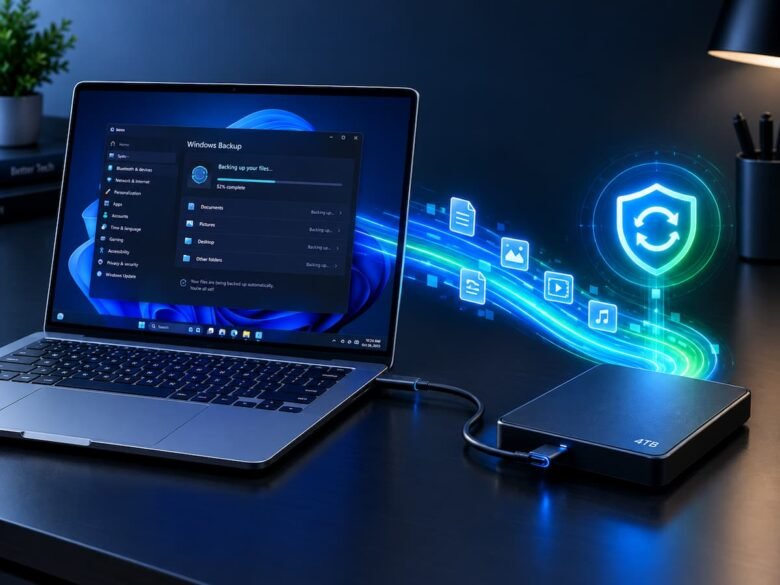
Data loss can strike without warning. A sudden hardware failure, a sophisticated ransomware attack, or a simple accidental deletion can wipe out years of critical work, irreplaceable family photos, and sensitive financial documents. While cloud storage solutions like OneDrive and Google Drive are excellent for file syncing and remote access, they are not foolproof. Cloud accounts can be compromised, and relying solely on an internet connection for large file recovery can be agonizingly slow. This makes establishing an automated local backup routine on your Windows 11 PC an absolute necessity.
Automating your local backups ensures that your data is continuously duplicated to a physical external hard drive or Network Attached Storage (NAS) device without requiring any daily manual intervention. Windows 11 provides several built-in mechanisms to handle this, and there are robust third-party alternatives for users requiring advanced customization. This comprehensive guide will walk you through exactly how to set up, configure, and maintain automated local backups in Windows 11.
Understanding Windows 11 Backup Terminology
Before configuring your system, it is crucial to understand the different types of backup methods available within the Windows ecosystem. Choosing the right method depends entirely on what exactly you are trying to protect.
- File Syncing vs. True Backup: Syncing (like standard OneDrive) mirrors your current folder state; if you delete a file on your PC, it deletes in the cloud. A true backup retains historical versions of your files, allowing you to travel back in time to recover a document as it looked three weeks ago.
- File-Level Backup: This method targets specific folders (Documents, Pictures, Desktop) and copies the individual files. It is fast, requires less storage space, and is ideal for protecting personal data.
- System Image Backup: This creates an exact, byte-for-byte replica of your entire hard drive, including the Windows 11 operating system, hidden system files, installed software, and personal data. It is used to restore a completely dead computer to its exact previous state.
Method 1: Automating File-Level Backups with File History
File History is Microsoft’s native, built-in tool specifically designed for continuous, automated local backups of your personal files. Once configured, it silently runs in the background, saving multiple versions of your files to an external drive.
Step-1: Prepare Your External Drive
Connect a high-capacity external Hard Disk Drive (HDD), Solid State Drive (SSD), or USB flash drive to your computer. Ensure the drive has significantly more storage capacity than the data you intend to back up. For most users, a 1TB or 2TB external drive is optimal.
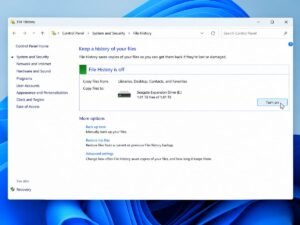
Step-2: Access the File History Control Panel
Although Windows 11 has a modern Settings app, File History is still managed through the classic Control Panel.
- Press the Windows Key and type Control Panel, then press Enter.
- In the top-right search box of the Control Panel, type File History.
- Click on the Save backup copies of your files with File History link.
Step-3: Select Your Backup Drive
If your external drive is plugged in, File History should detect it automatically.
- Click on Select drive from the left-hand navigation pane.
- Highlight your connected external drive or NAS location in the list.
- Click OK to confirm your selection.
Step-4: Customize Automation and Retention Settings
By default, File History backs up your files every hour and keeps them forever. You can optimize these settings to manage your external drive space more efficiently.
- Click on Advanced settings in the left-hand menu.
- Under Save copies of files, choose your automation frequency (options range from every 10 minutes to daily).
- Under Keep saved versions, select how long you want to retain historical data. Selecting Until space is needed is highly recommended, as it automatically deletes the oldest backups only when your external drive is completely full.
- Click Save changes.
Step-5: Exclude Unnecessary Folders
File History automatically backs up your Desktop, Contacts, Favorites, and standard user libraries. To save space, you can exclude heavy folders containing files you do not need to back up (like large game installation folders or temporary download directories).
- Click on Exclude folders in the left menu.
- Click Add and select the directories you want the automation script to ignore.
- Click Save changes.
- Finally, click the Turn on button on the main File History screen to begin your automated backup schedule.
Method 2: Automating Full System Image Backups
If you want the ability to restore your entire operating system, applications, and settings after a catastrophic hard drive failure, you need a System Image. Windows 11 still includes the “Backup and Restore (Windows 7)” tool for this exact purpose.
- Open the Control Panel and navigate to System and Security > Backup and Restore (Windows 7).
- Click on Set up backup on the right side of the window.
- Select your external drive as the backup destination and click Next.
- Choose Let me choose to manually select the drives to back up, ensuring you check the box for Include a system image of drives: EFI System Partition, (C:), Windows Recovery Environment.
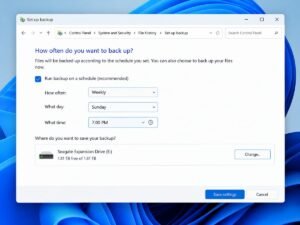
- On the review screen, click Change schedule.
- Check the box for Run backup on a schedule (recommended). Set the frequency to Weekly, choose a day, and pick a time when your computer is usually turned on but not under heavy use.
- Click Save settings and run backup. Windows will now automatically generate a full system image on your specified schedule.
Method 3: Using Third-Party Software for Advanced Automation
While native Windows 11 tools are functional, they lack advanced compression, encryption, and granular scheduling features. Professional users often rely on third-party software like Macrium Reflect, AOMEI Backupper, or EaseUS Todo Backup for enterprise-grade local automation.
These tools offer distinct advantages for automated local backups:
- Incremental and Differential Backups: Instead of copying every file every time, these tools only back up the specific data blocks that have changed since the last backup. This drastically reduces the time and storage space required for daily automated backups.
- Drive Cloning: You can automate the cloning of your entire internal SSD to an external drive. If your internal drive dies, you can physically swap the external drive into your PC and boot immediately.
- Encryption: Third-party tools allow you to encrypt your local backups with AES-256 encryption, ensuring that if your external drive is stolen, your data remains completely inaccessible.
To automate using a tool like AOMEI Backupper:
- Download and install the software.
- Navigate to the Backup tab and select System Backup or File Backup.
- Select your source data and your external destination drive.
- Click on the Schedule icon at the bottom of the interface.
- Set your automated triggers (Daily, Weekly, or upon specific events like System Startup or USB plug-in).
- Click Start Backup to initialize the automated routine.
The 3-2-1 Backup Strategy
Automating your local backup is only one piece of a secure data protection plan. Cybersecurity experts universally recommend the 3-2-1 rule to ensure complete data invulnerability against hardware failure, ransomware, and physical disasters (like fire or theft).
- Maintain exactly 3 copies of your critical data (one primary working copy on your laptop, and two backup copies).
- Store these backups on 2 different types of media (for example, one on an external local HDD, and one in a cloud server).
- Keep at least 1 of those backups offsite (this is where encrypted cloud storage or a secondary external drive kept at a separate physical location comes into play).
By combining the automated local File History setup detailed above with a secure cloud syncing service, you instantly satisfy the requirements of the 3-2-1 strategy.
How to Restore Your Automated Local Backups
A backup is completely useless if you cannot restore the data when disaster strikes. It is highly recommended that you test your automated backups monthly by performing a test restoration.
To restore individual files via File History:
- Connect the external drive containing your automated backups.
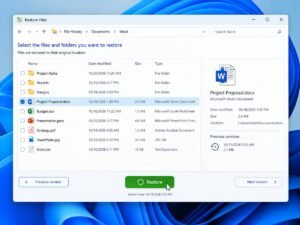
- Click the Windows Start button, type Restore your files with File History, and press Enter.
- A window will appear displaying the root folders of your backup. You can use the left and right arrow buttons at the bottom of the screen to travel back and forth through time to find the exact date and version of the file you need.
- Select the file or folder you wish to recover and click the green circular Restore button. The file will be immediately placed back into its original location on your Windows 11 PC.
Frequently Asked Questions (FAQs)
Does an automated local backup slow down my Windows 11 PC?
Native tools like File History are designed to consume very few system resources. They run silently in the background at low priority. You will likely not notice any performance degradation, even while gaming or rendering video, while the backup process runs.
What happens if my external backup drive is disconnected during a scheduled backup?
If your drive is disconnected, Windows 11 will cache a small amount of backup data on your internal drive. It will pause the main backup routine and wait. As soon as you plug the external drive back into the USB port, File History will automatically resume and catch up on the missed files without any prompts.
Can ransomware infect my automated local backup drive?
Yes. If your external backup drive is permanently plugged into your PC, a sophisticated ransomware infection can spread from your internal C: drive to your external backup drive, encrypting your backups as well. To mitigate this, consider using backup software that unmounts the drive when not in use, or physically disconnect the drive after the automated backup completes.
How much storage space do I actually need for a local backup?
A general rule of thumb is to purchase an external drive that is at least twice the capacity of your internal PC storage. If your Windows 11 laptop has a 512GB internal SSD, aim for a 1TB external drive. This provides ample space for the initial full backup and months of historical file versions.
Sources and References
- Microsoft Support: Back up your Windows PC using File History and Windows Backup.
- National Institute of Standards and Technology (NIST): Guidelines for Data Backup and Storage Security.
- Cybersecurity & Infrastructure Security Agency (CISA): Data Backup Options and the 3-2-1 Strategy.